



With ExpressKeys, you can store secure notes and confidential documents (such as your passport or medical information) and sync them across your devices for safe and convenient access.
Secure notes are protected by your vault password, so only you can access them. Using ExpressKeys’ secure notes provides additional security over regular note-taking apps.
Jump to…
Android, iOS, and Chrome/Firefox browser extensions
macOS
Android, iOS, and Chrome/Firefox browser extensions
How to add secure notes
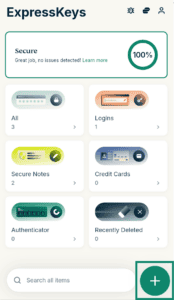
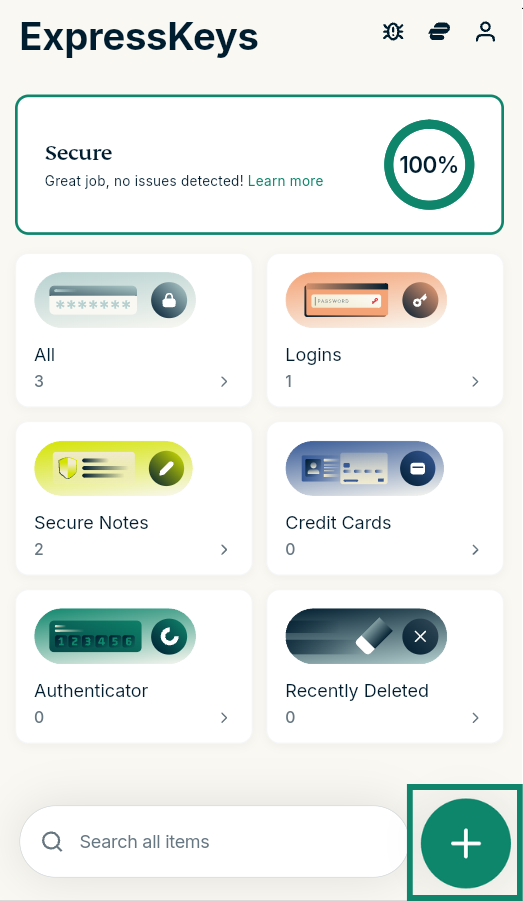
To add a secure note in the ExpressKeys app on Android or iOS or in the browser extension, follow these steps:
- In ExpressKeys, select the plus icon

 .
.

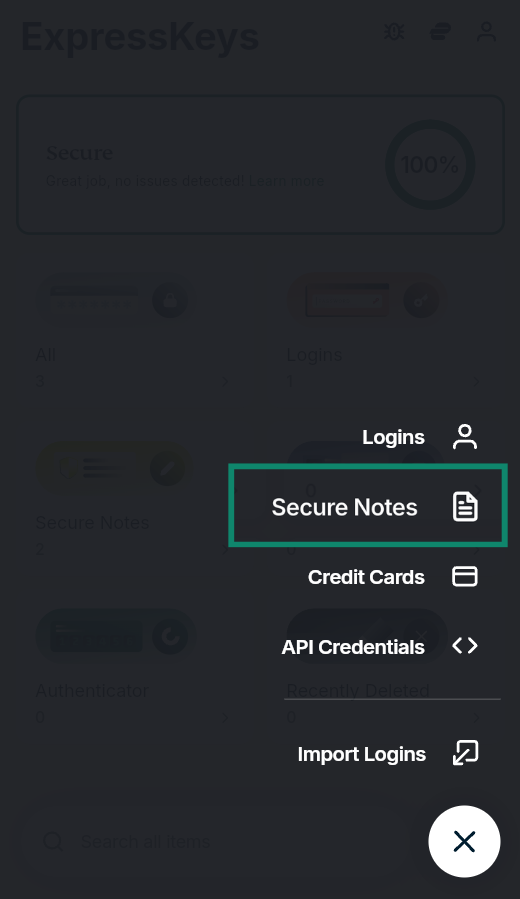
- Select Secure Notes.
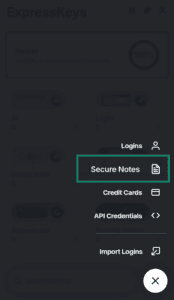

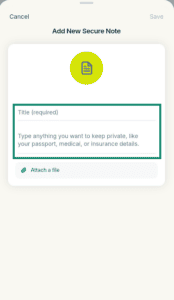
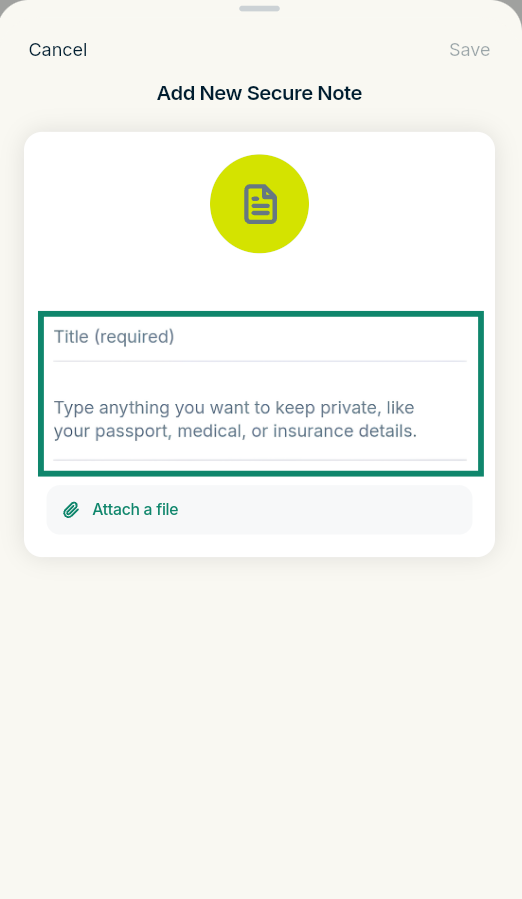
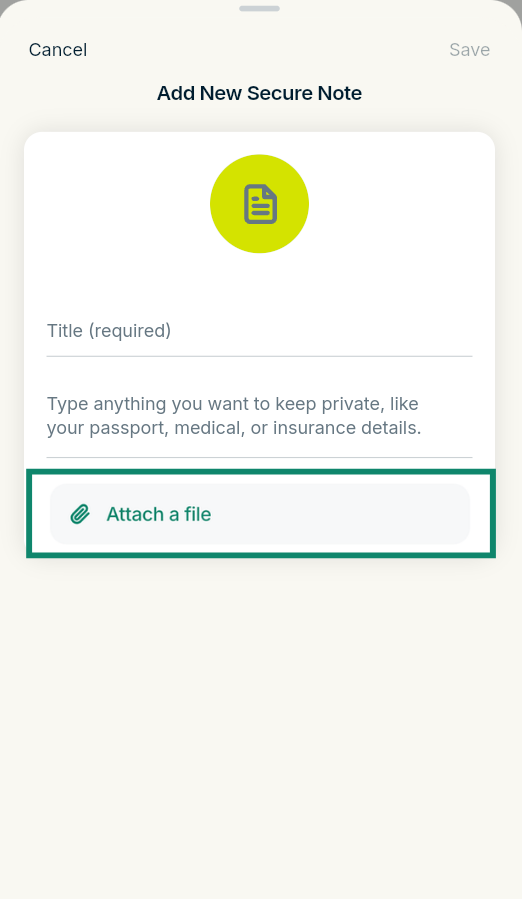
- Fill in the fields.
- If you would like to attach a relevant file, select Attach a file and select the desired option. You can take a photo (iOS/Android only) or select a photo or file from your device.
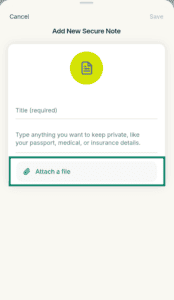
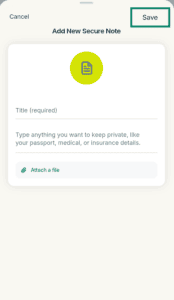
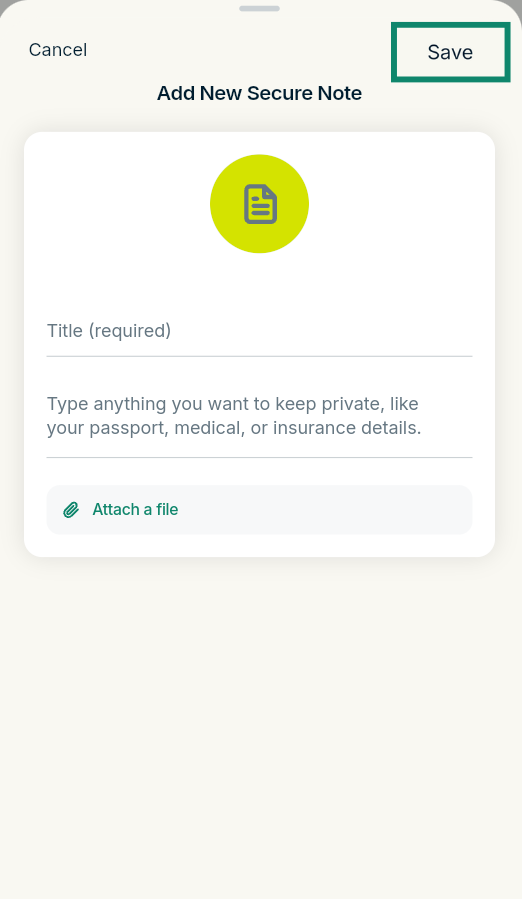
- Select Save.
Need help? Contact our Support Team for immediate assistance.
How to edit or delete secure notes
In the ExpressKeys Android app or browser extension
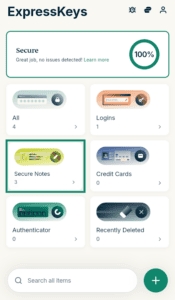
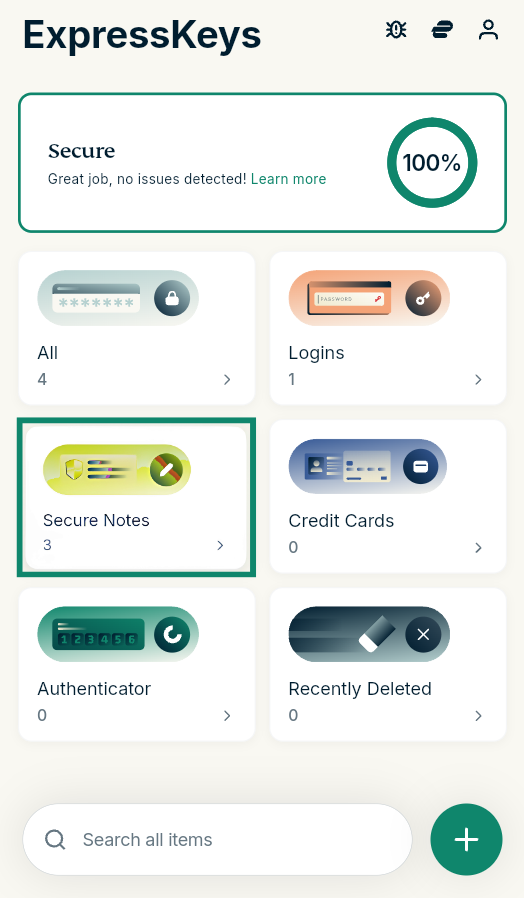
- Select the Secure Notes widget.

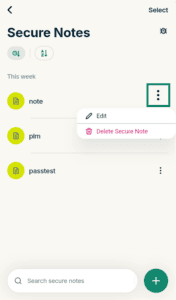
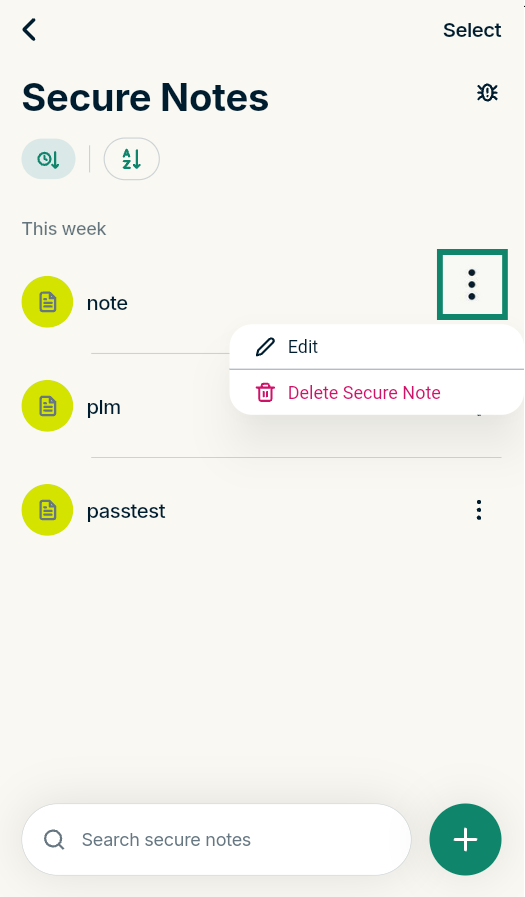
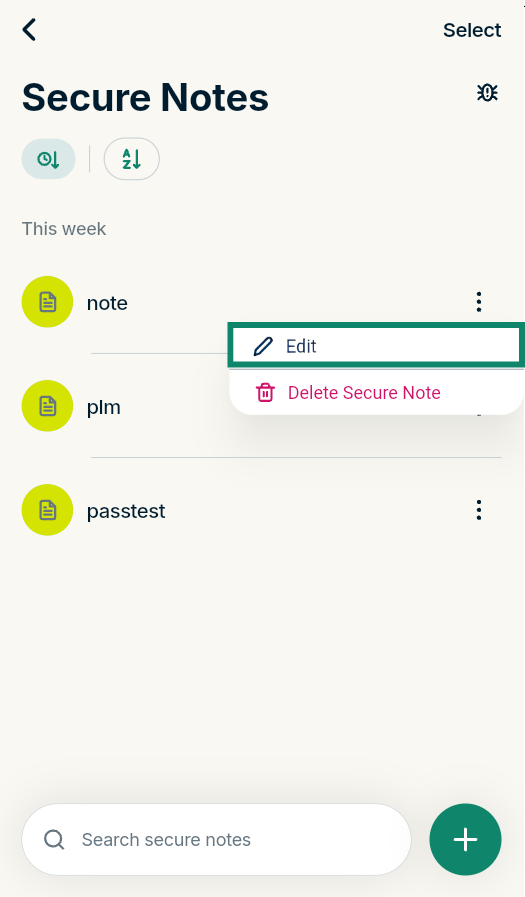
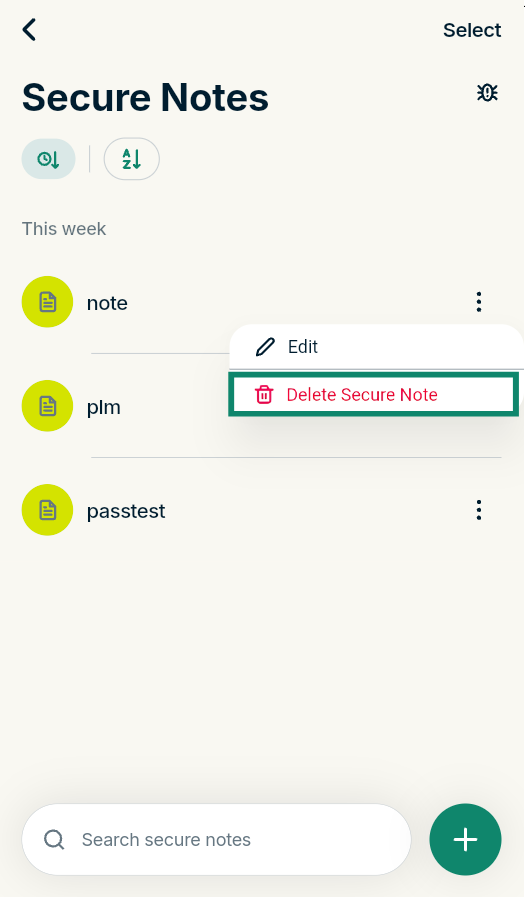
- Find the secure note you want to edit or delete and select the three-dot menu icon.

To edit a secure note
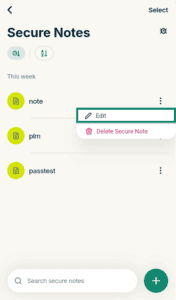
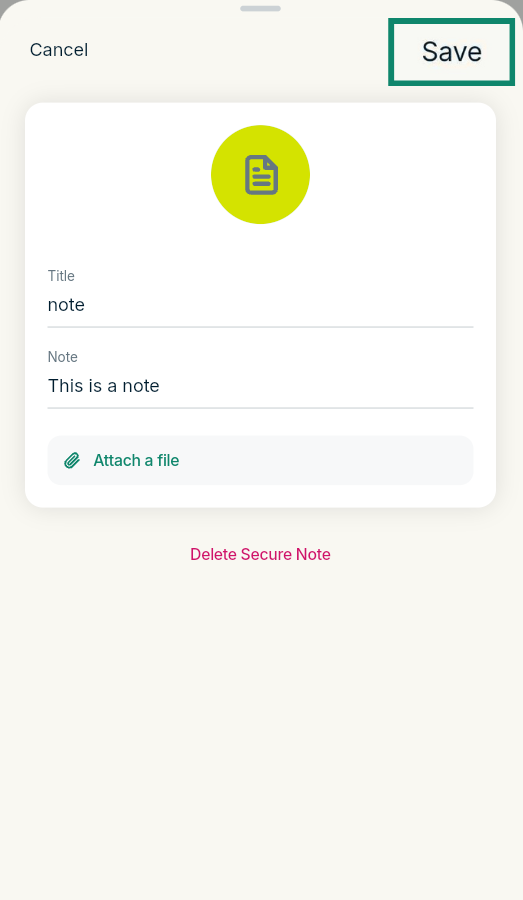
- Select Edit.
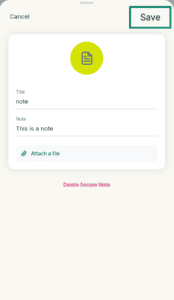
- Make the changes you want and hit Save.

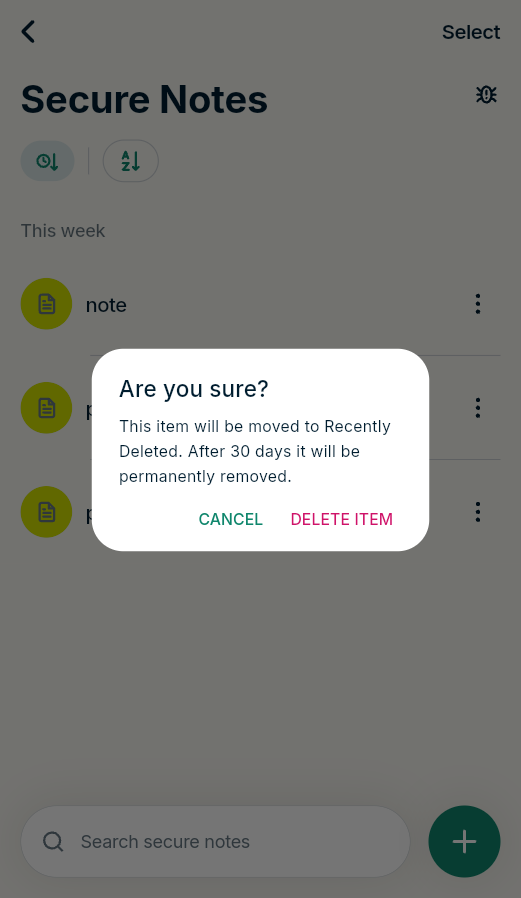
To delete a secure note
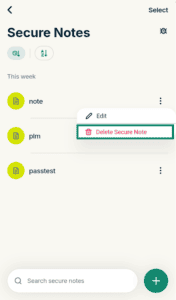
- Select Delete Secure Note.
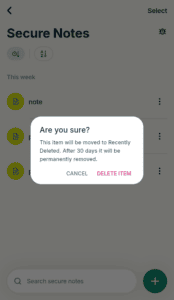
- Select Delete item to confirm.
In the ExpressKeys app for iOS
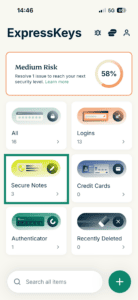
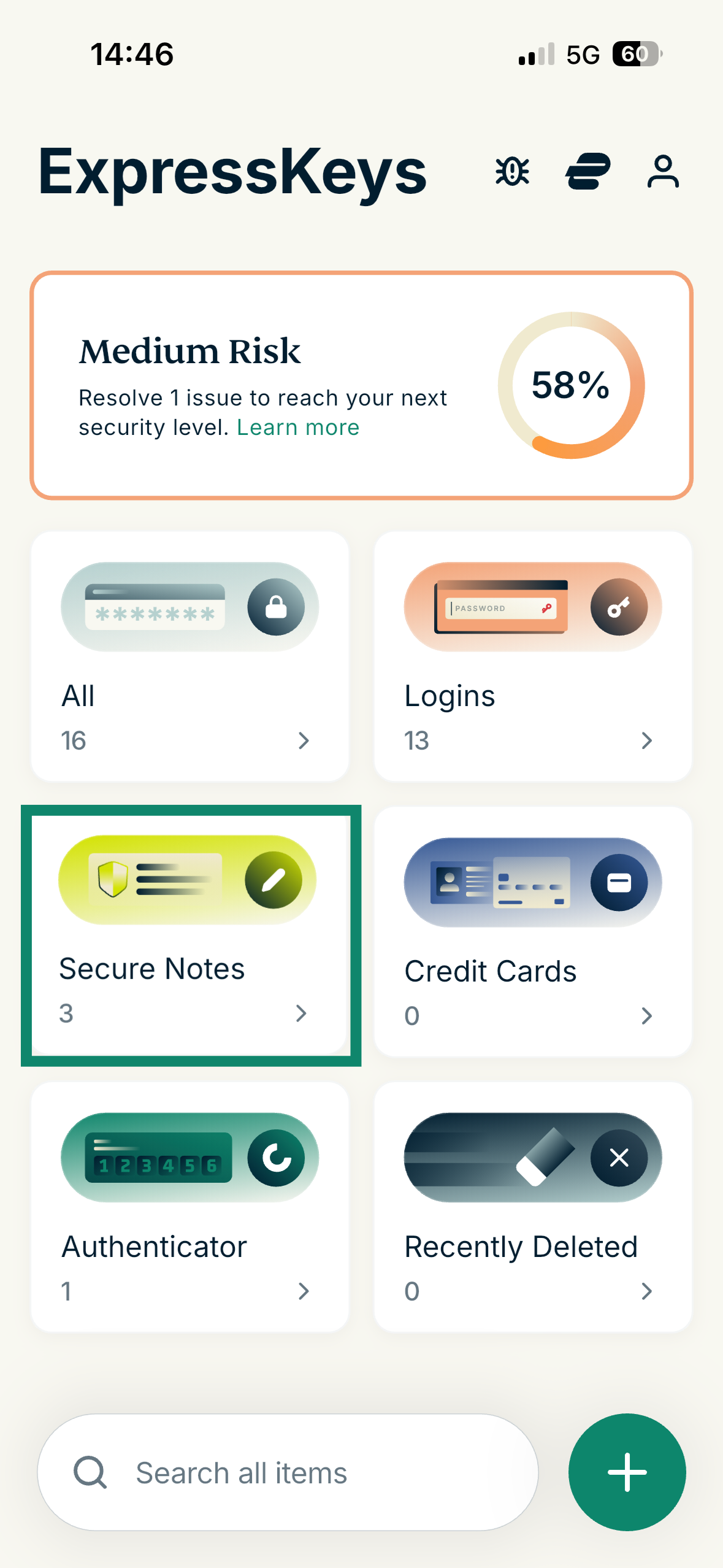
- Tap the Secure Notes widget in the ExpressKeys app.

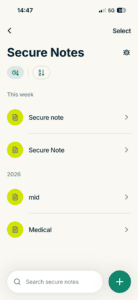
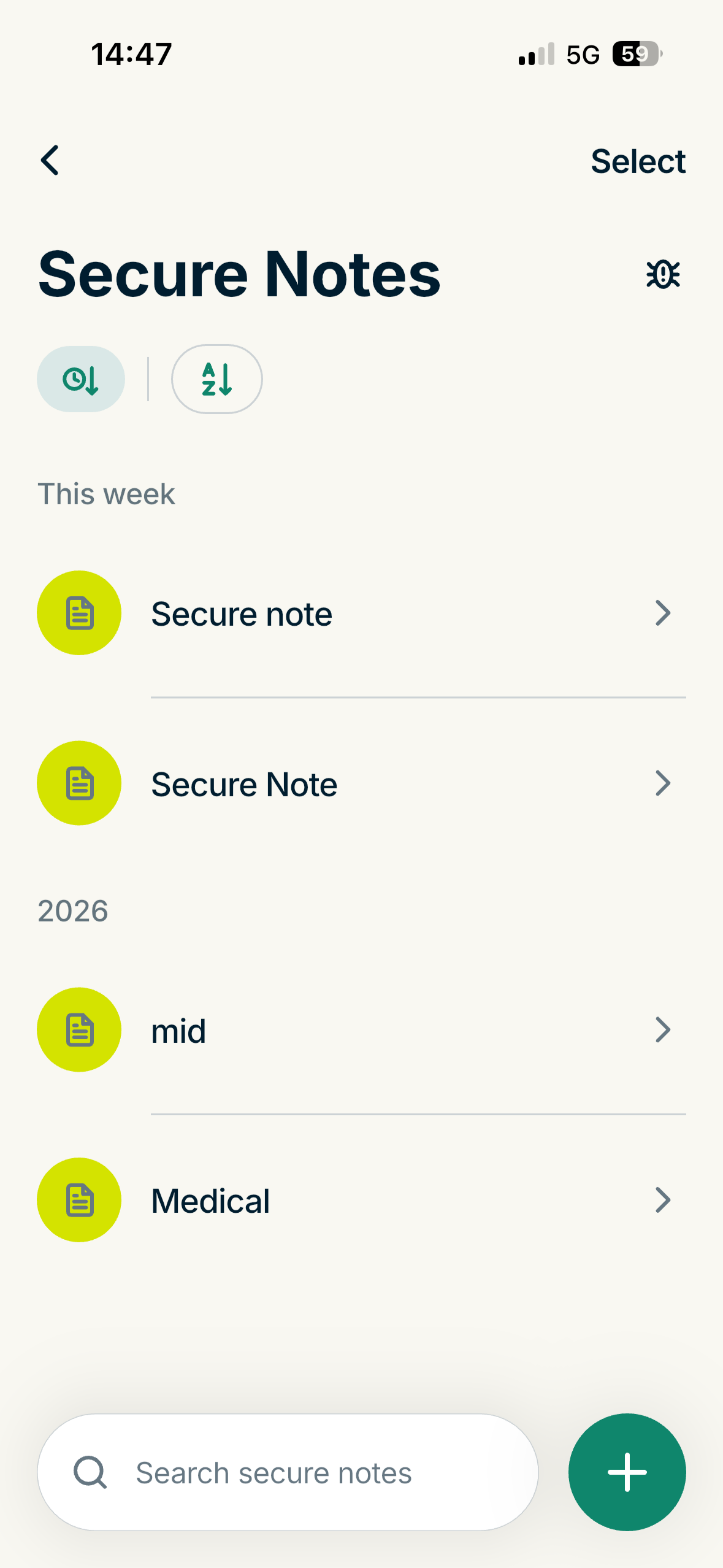
- Find and tap the secure note you want to edit or delete.
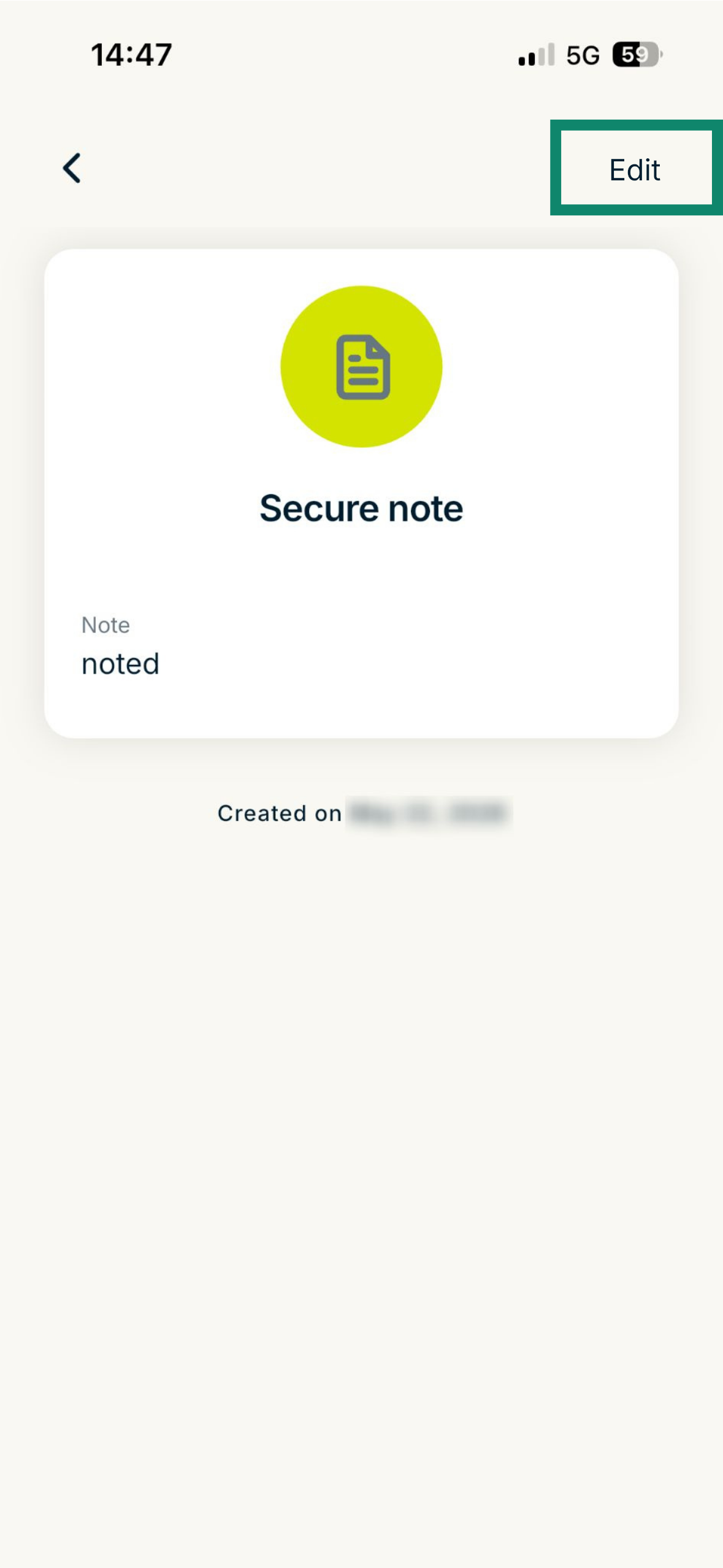
- Tap Edit.
To edit a secure note
Adjust your information, then tap Save.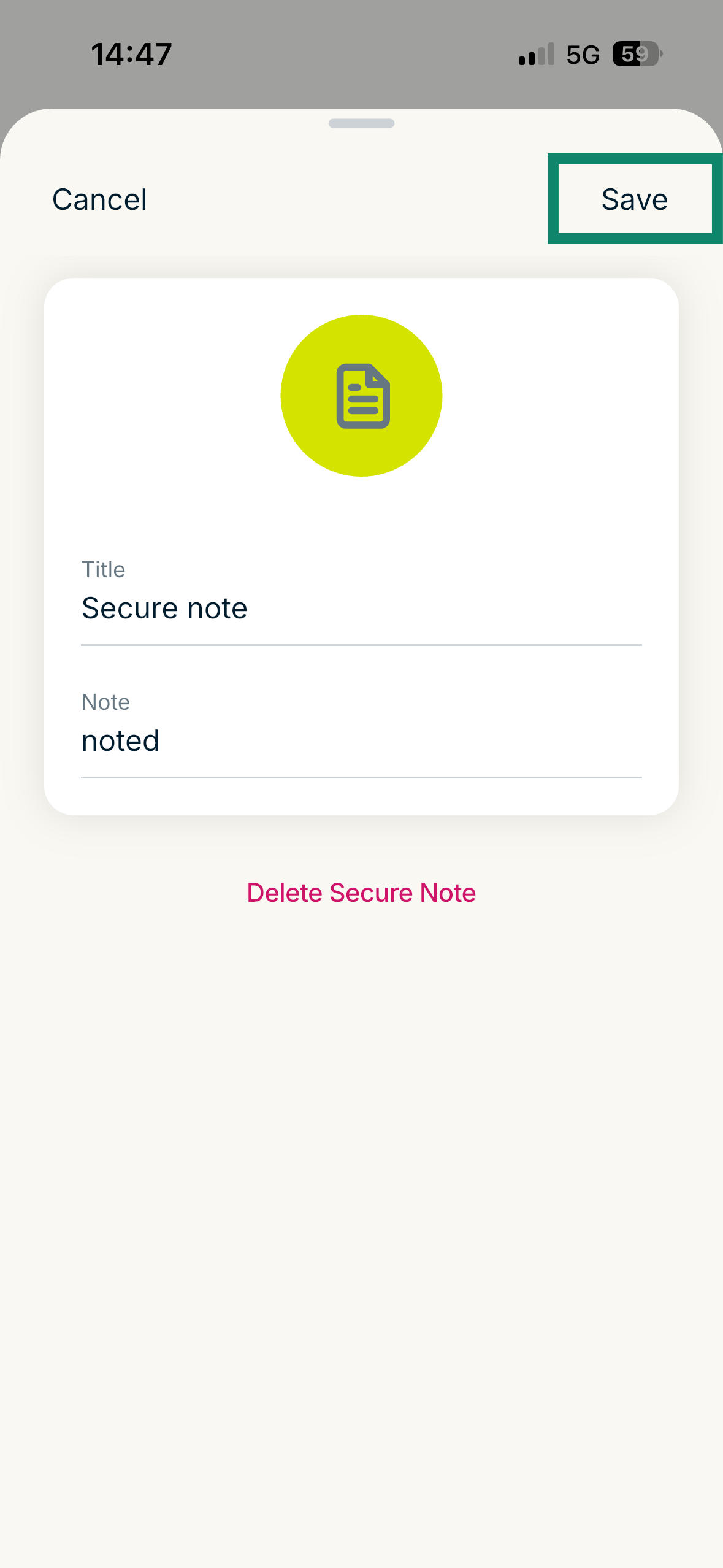
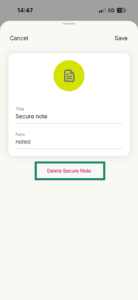
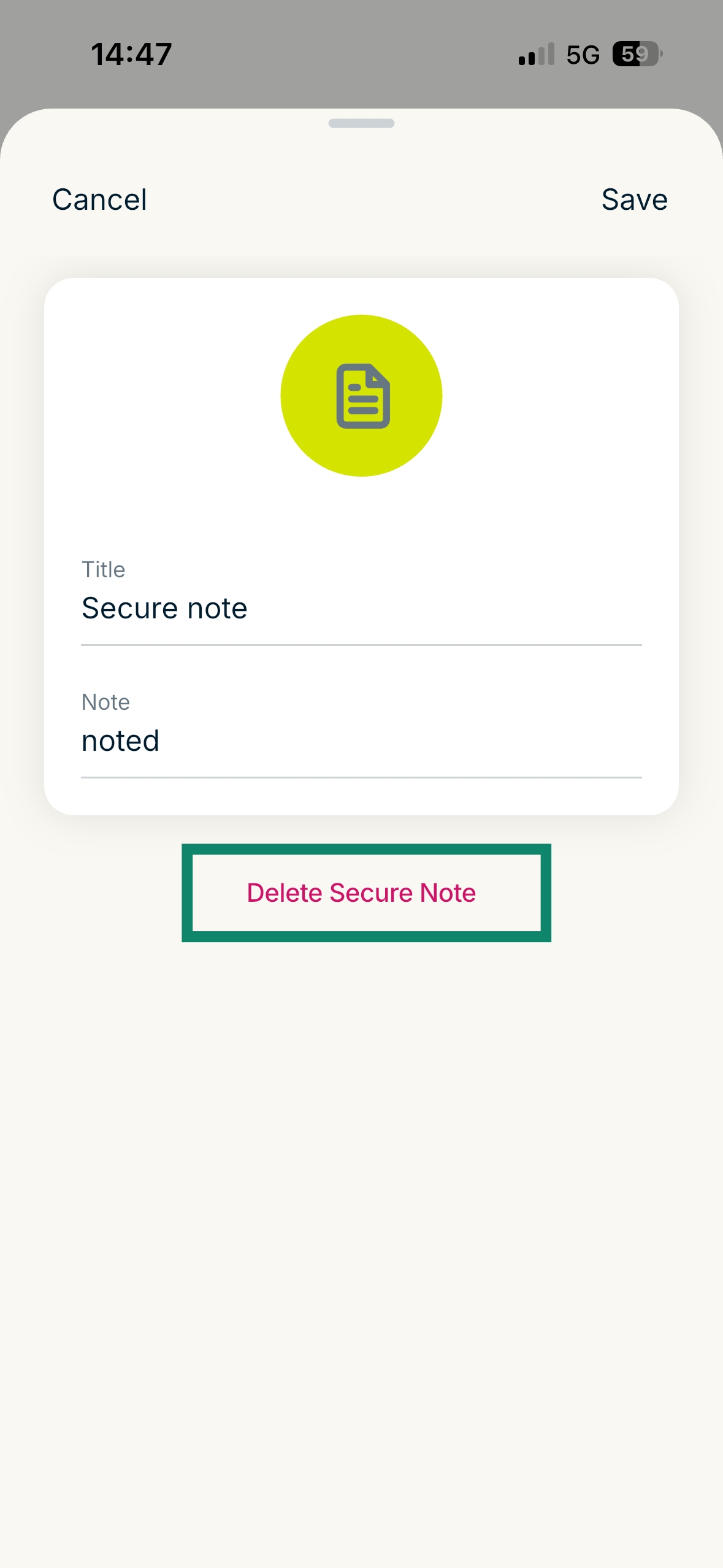
To delete a secure note
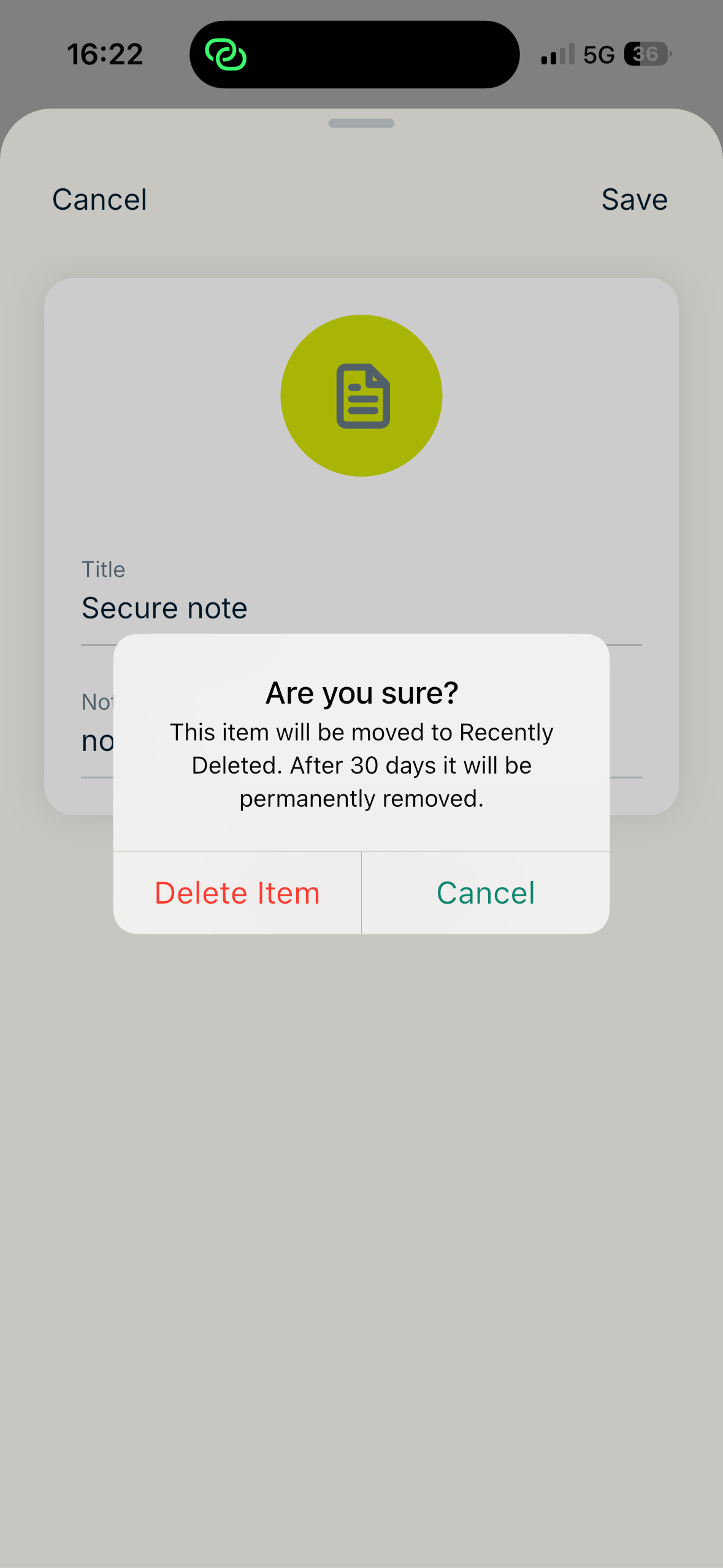
- Tap Delete Secure Note.
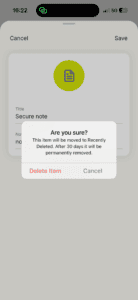
- Tap Delete item in the pop-up to confirm.
Need help? Contact our Support Team for immediate assistance.
macOS
How to add secure notes
To add a secure note in ExpressKeys for macOS, follow these steps:
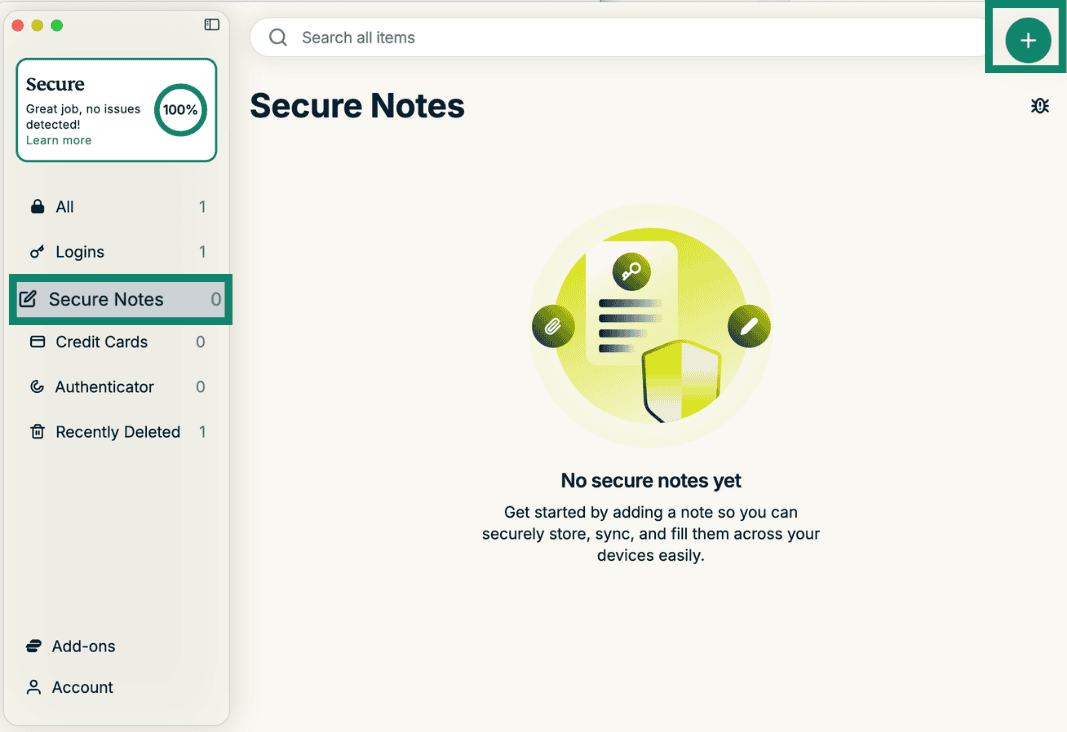
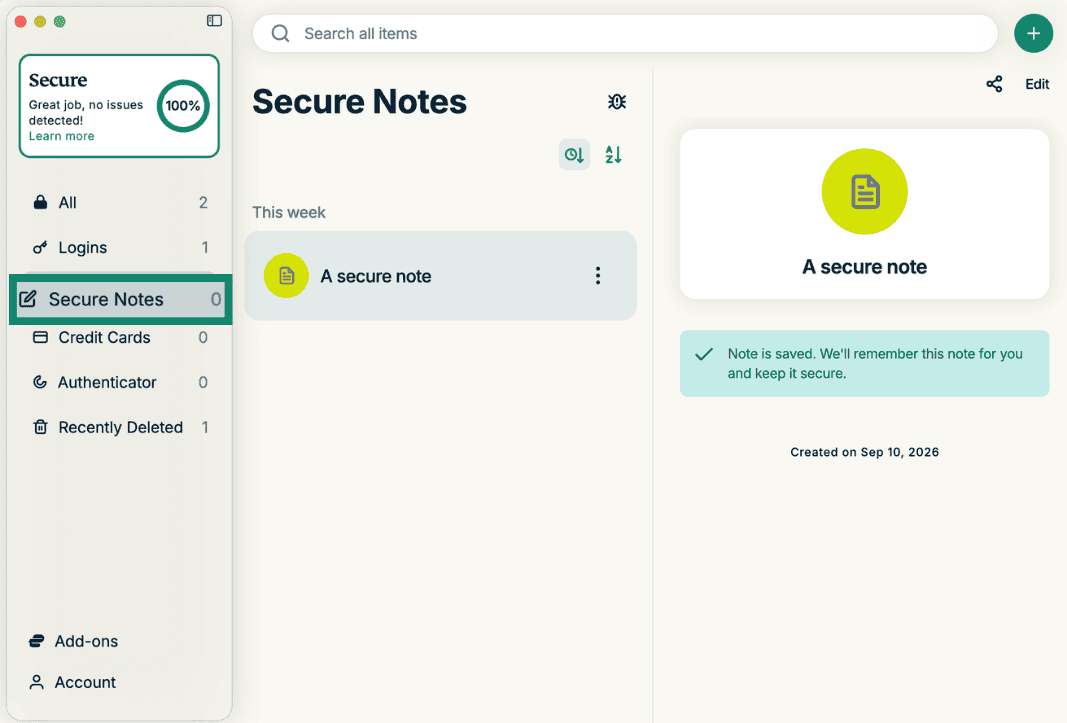
- In ExpressKeys, click Secure Notes, then the plus icon (+).


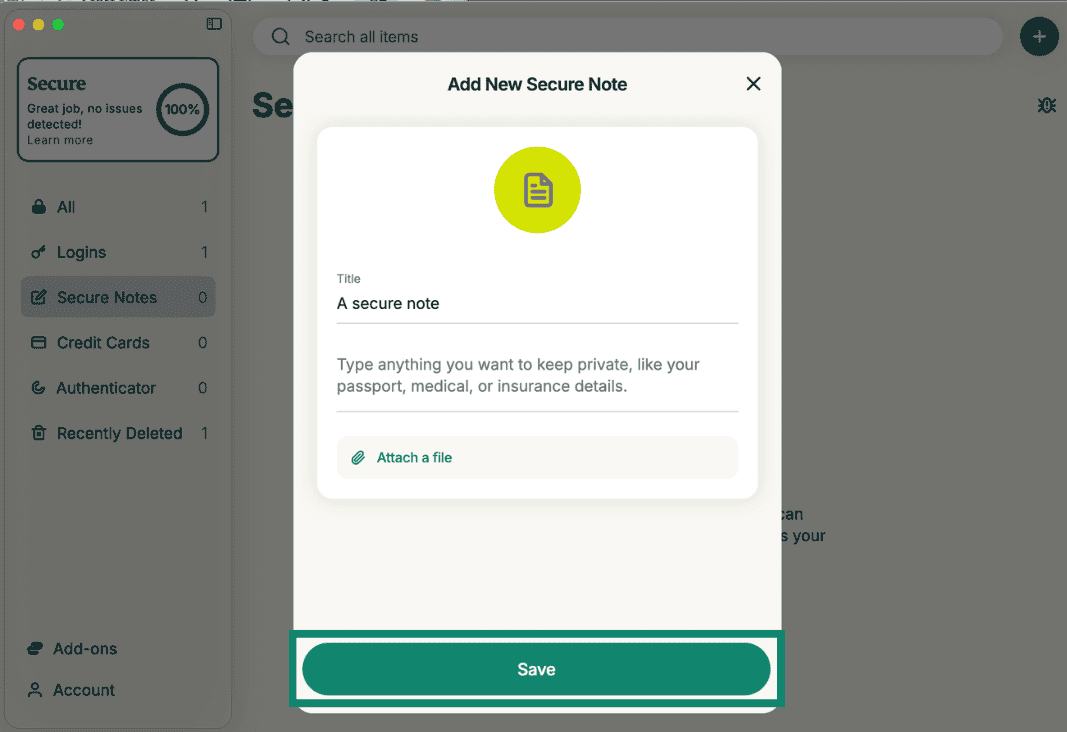
- Fill in the fields, then click Save.
Need help? Contact the ExpressVPN Support Team for immediate assistance.
How to edit or delete secure notes
To edit or delete a note in ExpressKeys for macOS, follow these steps:
- In ExpressKeys, go to Secure Notes.


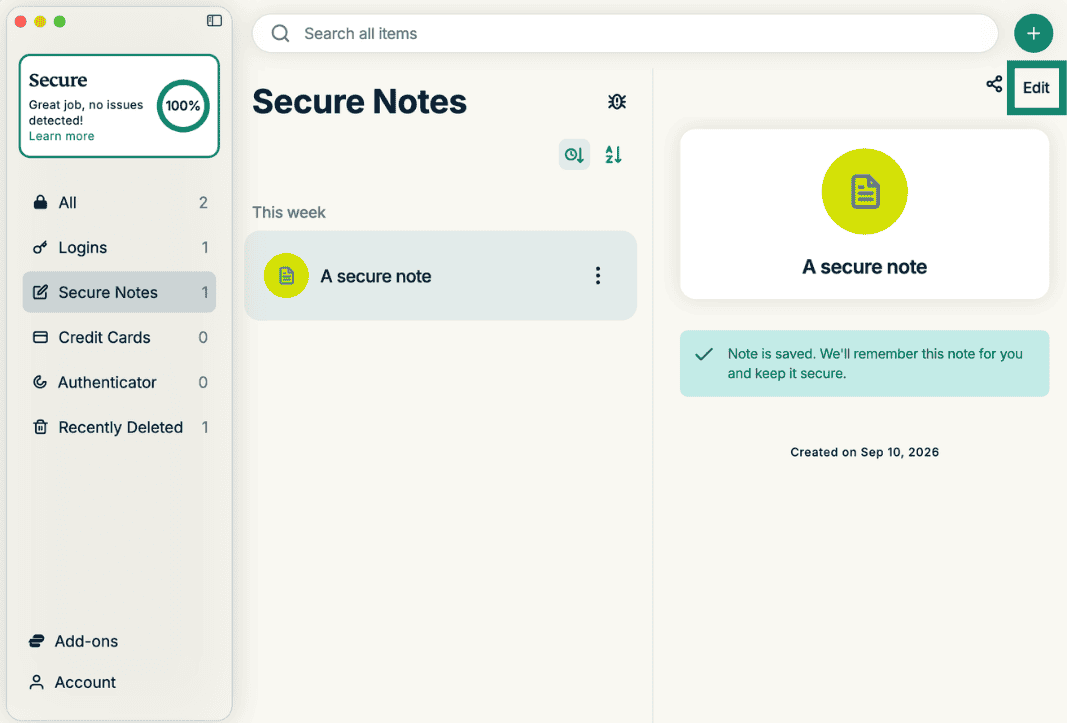
- Click the secure note you want to edit or delete, and select Edit.

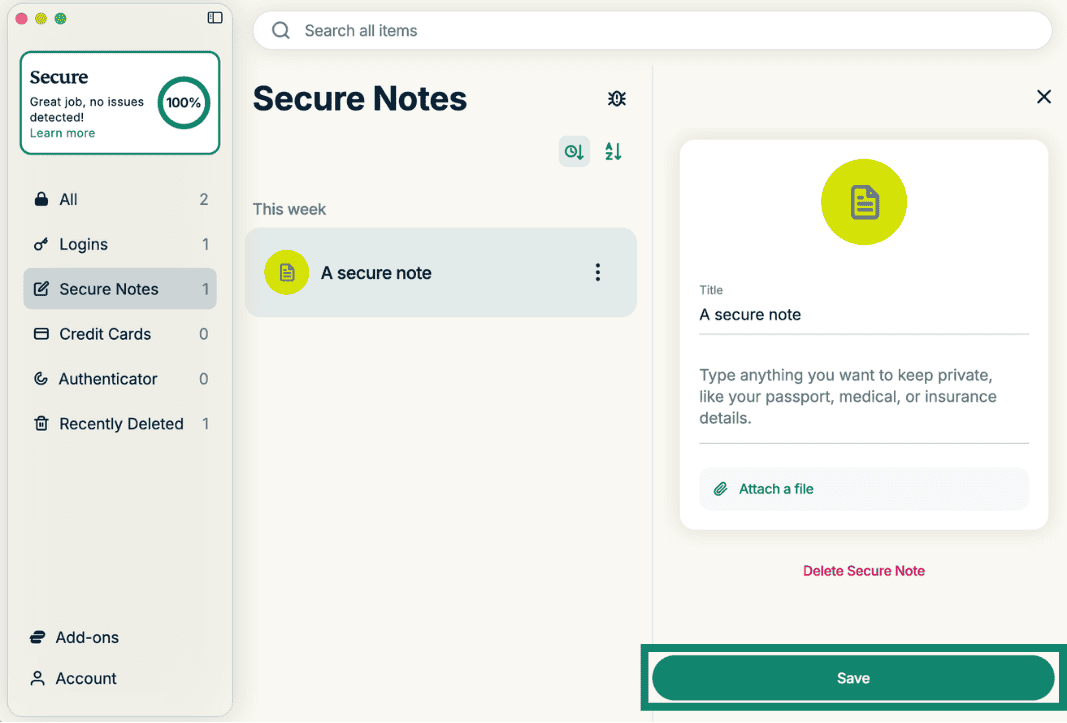
- You can then change any details and click Save to save the changes.

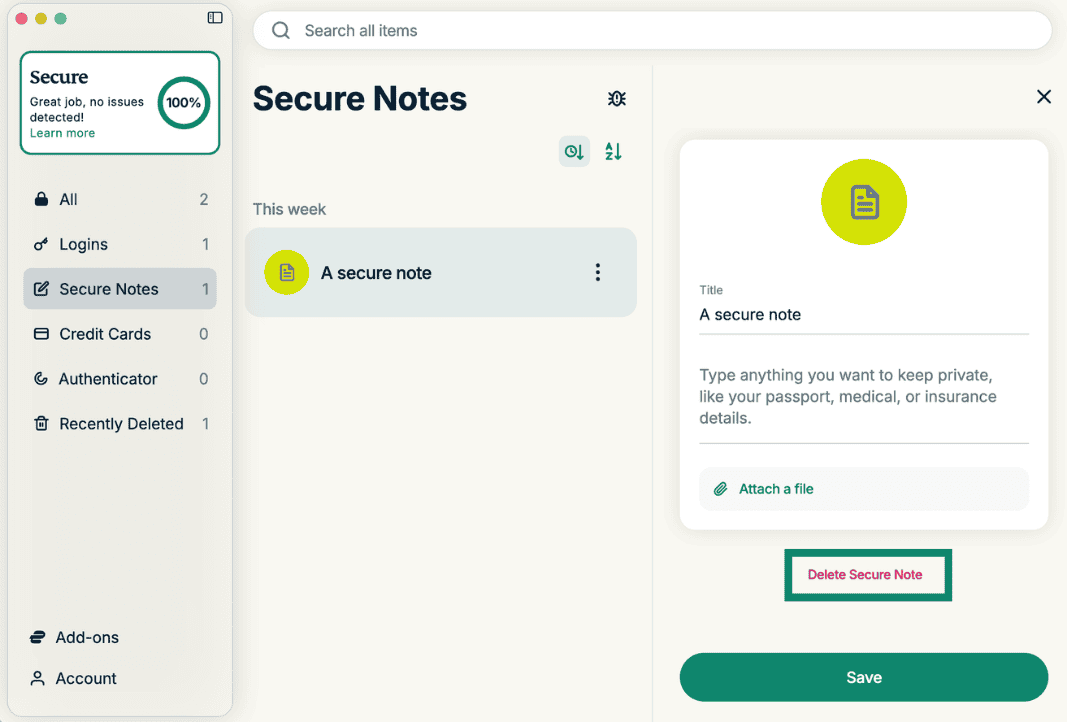
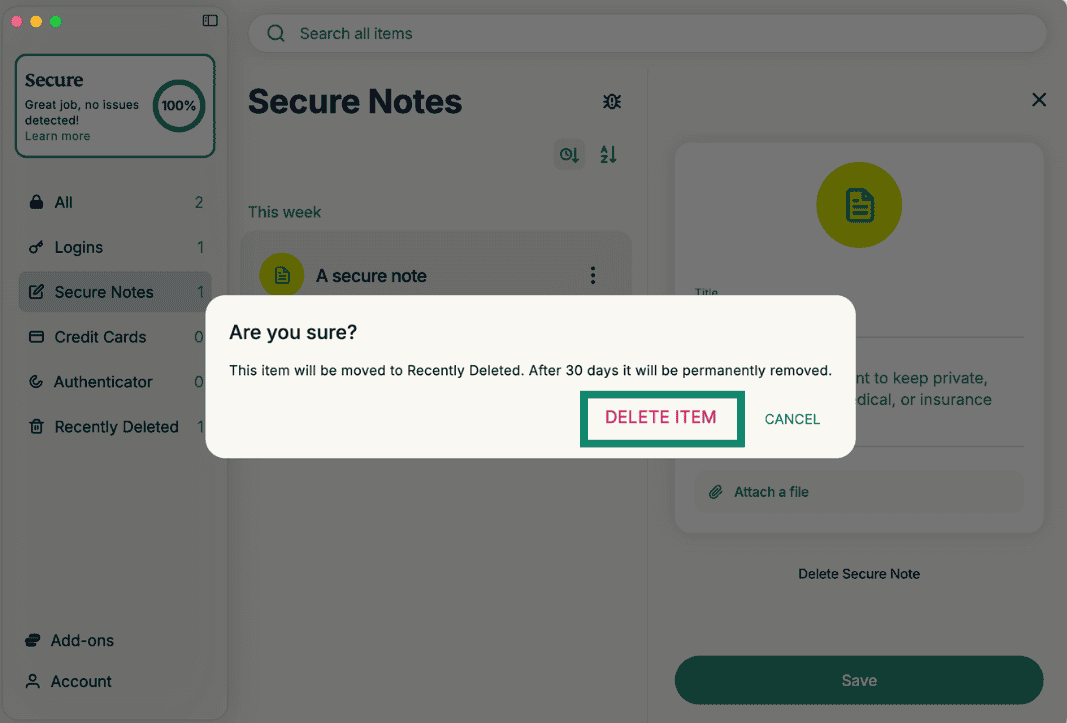
To delete the note:
- Click Delete Secure Note.
- Click DELETE ITEM to confirm.

Need help? Contact the ExpressVPN Support Team for immediate assistance.
How to import secure notes
You can import your secure notes into ExpressKeys from other password managers, including 1Password, Dashlane, LastPass, Bitwarden, and the Passwords app for Apple devices. Follow these instructions.
Need help? Contact our Support Team for immediate assistance.