How to choose a VPN router


A VPN router runs a VPN connection at the network level so connected devices can use the VPN without their own app. Some routers come with a built-in VPN, while others require manual setup. When choosing one, look for a router that works with your existing home network, delivers reliable performance, and makes it easy to manage your VPN connection.
If you want the VPN built in, ExpressVPN’s Fortify router is a convenient option. This Wi-Fi 6 router has a dedicated ExpressVPN interface with guided setup, and it can send traffic from smart TVs, game consoles, smart speakers, and other connected devices through ExpressVPN.
What to look for in a VPN router
Here are the main factors to consider:
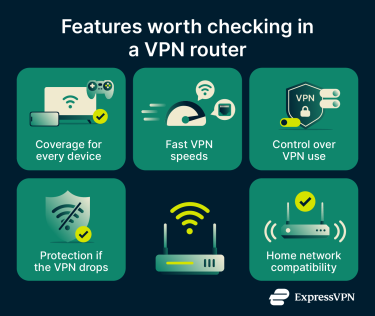
VPN coverage for all your devices
One of the main reasons to choose a VPN router is to protect devices that can't run VPN apps. Instead of installing VPN software on each device, you route their traffic through the VPN connection on the router.
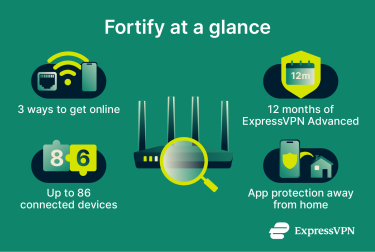
Fortify has ExpressVPN built in and can protect any supported device on its network: smart TVs, streaming boxes, game consoles, smart speakers, and security cameras, as well as phones, tablets, and computers. It supports up to 86 devices at once, which suits households with many connected devices.
This protection applies only while devices are connected to Fortify. When a phone or laptop leaves your home network, it can stay protected with the ExpressVPN app, which comes with the same subscription.
VPN performance and connection options
Running a VPN on a router can affect internet speeds, especially when several devices are connected at once. The router needs enough processing power to handle VPN encryption, along with modern Wi-Fi and wired ports for devices that need a stable connection.
Fortify’s processor (2.0GHz, quad-core) encrypts the VPN traffic for every device on your network and allows VPN speeds of up to 900Mbps.
Fortify also uses Wi-Fi 6, a Wi-Fi generation built for homes with many connected devices. A Wi-Fi 6 feature called Multi-User Multiple Input Multiple Output (MU-MIMO) lets the router send data to up to eight devices at the same time instead of one after another. This helps Fortify carry HD and 4K streams to several devices at once, so one person gaming doesn’t slow down everyone else.
For devices you connect by cable, Fortify has six Ethernet ports. Two are high-speed 2.5Gbps ports that give the fastest wired connection, and the other four run at up to 1Gbps.
Control over which devices use the VPN
You might want your smart TV to use the VPN while keeping another device on your regular internet connection. A VPN router with flexible routing options lets you set this up without turning the VPN off and on.
On Fortify, you do this with VPN tunnels. Each tunnel has rules for which devices or connection types use it, so you can send all connected devices through one tunnel or set up separate tunnels for specific devices or connections.
Each tunnel can also have several VPN server locations in priority order. If one location fails to connect, Fortify tries the next one on the list.
Protection if the VPN connection drops
If a VPN connection drops unexpectedly, some VPN routers might allow traffic to continue over your regular internet connection. This can reveal information the VPN would otherwise hide, such as your real IP address.
A kill switch reduces this risk by blocking affected traffic until the VPN reconnects. Fortify has a kill switch that can be turned on for each VPN tunnel. When it’s on, traffic that should use that tunnel is blocked if the VPN disconnects.
For stricter protection, the Enhanced Kill Switch blocks all traffic that doesn’t match an active VPN tunnel, so connected devices can only reach the internet through the VPN. If no tunnels are active, the devices have no internet access.
Compatibility with your home network
Before buying a VPN router, check whether it works with the equipment supplied by your internet service provider (ISP), supports your devices, and covers your whole home. It also helps to consider whether you need wired connections, extra networking equipment, or coverage across several floors.
Fortify gives you three ways to get online. It can connect to your existing internet equipment by cable, join an existing Wi-Fi network (repeater mode), or use a phone’s mobile data (tethering mode). If a cable connection isn’t practical where you want to place the router, the other two modes let it get online without one.
Fortify broadcasts Wi-Fi on two bands, so each device can connect on the one that suits it best. The 2.4GHz band reaches farther through walls, while the 5GHz band is faster at shorter range.
Fortify covers up to 1,500 sq ft (about 140 m²), which suits a medium-sized home. Your home’s layout, building materials, and interference can reduce that range. It’s a single router rather than a mesh system, which uses several units placed around the home to spread Wi-Fi.
What to consider before buying ExpressVPN Fortify
Before buying Fortify, it helps to know what the included ExpressVPN subscription covers and what happens once the included period ends.
What does a Fortify subscription include?
Fortify comes with 12 months of the ExpressVPN Advanced plan for new and returning users who don’t have an active ExpressVPN subscription. This includes access to ExpressVPN through the router and the ability to use ExpressVPN apps on supported personal devices.
If you already subscribe, you can sign into Fortify with your existing account. You can also redeem the included 12 months after your current subscription expires, as long as you claim them within two years of buying Fortify. To let your current subscription expire, you need to turn off auto-renewal.
Besides the VPN, the Advanced plan includes:
- Advanced protection: Ad, tracker, and malicious site blocking, plus parental controls for adult content.
- ExpressKeys: A password manager.
- ExpressMailGuard: Email aliases that hide your real email address.
- holiday.com eSIM data: Up to three days of mobile data for traveling.
- Identity Defender: Identity protection for U.S. customers.
These features don’t run on Fortify. They’re in the ExpressVPN apps on your devices, while Fortify handles VPN protection for your network.
What happens when the included 12 months end?
To keep using ExpressVPN on Fortify after the included 12 months, you need an active ExpressVPN subscription. When you redeem the included plan, you add a payment method for renewal. You aren’t charged at that point, and the checkout page shows the renewal terms. If you don’t want the subscription to renew, you can turn off auto-renewal.
Without an active subscription, Fortify still works as a regular Wi-Fi 6 router, but its built-in ExpressVPN connection isn’t available.
How to get started with ExpressVPN Fortify
You set up Fortify in its admin panel, which you open in a web browser. Before you start, have the router’s label, which shows the default Wi-Fi name and password. If you’re claiming the included plan, you also need your order ID from Amazon or the GL.iNet store.
Set up your Fortify router
- Power on Fortify and connect your computer to its Wi-Fi, using the default SSID (network name) and Wi-Fi key (password) on the router’s label.
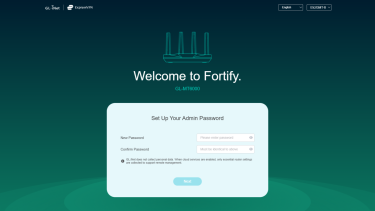
- In your browser, go to 192.168.8.1, create an admin password, and review your Wi-Fi network names.
- Under Select Network Mode, choose how Fortify connects to the internet (Ethernet, Repeater, or Tethering), then select your network and join it.
Connect your ExpressVPN account
- In the admin panel, go to VPN > VPN Client Profile.
- If you’re new to ExpressVPN, agree to the Terms of Service and click Get Started, then Claim 12-Month Plan.
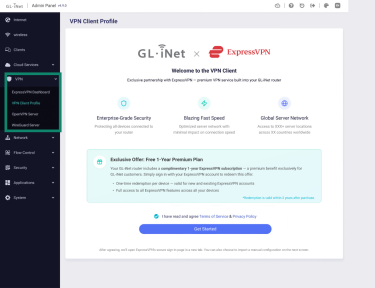
- Enter your order details and add a payment method on the checkout page, then return to the admin panel and click Login. If you already have a subscription, click Login without activation instead.
- Sign in with your email address and the 6-digit code sent to it, then click Yes to allow ExpressVPN access on Fortify. New users also create an account password at this step.
Manage your VPN settings
In the admin panel, click Go to ExpressVPN Dashboard. From there, you set up VPN tunnels to choose which devices use the VPN and which server locations they connect to and adjust the kill switch settings.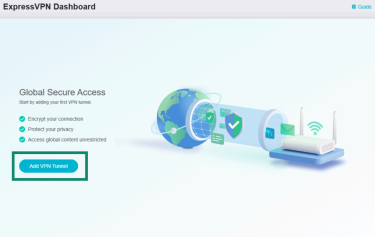
Want VPN protection for every device at home?
Fortify has ExpressVPN built in, so smart TVs, game consoles, and other devices on your home network can use the VPN without an app on each one.
Includes 12 months of ExpressVPN Advanced for new and returning users.
FAQ
Where can I buy Fortify?
You can buy ExpressVPN Fortify through the GL.iNet online store and Amazon. Prices vary by region.
Can I move my Aircove settings to Fortify?
Aircove settings can’t be transferred to Fortify directly, because Aircove runs on ExpressVPN’s AircoveOS firmware and Fortify runs on GL.iNet’s firmware. Fortify needs to be set up separately, but an active ExpressVPN subscription can be used with either router.
Can I use a dedicated IP on Fortify?
An ExpressVPN dedicated IP, available with the Express Pro plan or as a paid add-on, works through the ExpressVPN apps on individual devices, not through Fortify.
Does Fortify work with my ISP's modem?
Fortify can connect to the internet through your existing internet equipment, either by cable or by joining an existing Wi-Fi network. Some ISPs require specific equipment or settings, so check your provider’s requirements before setting it up.