How to recover deleted files on Android phone: fast methods that work


Accidentally deleting files on a phone can remove important data that is hard to replace, from personal memories to work-related documents. Fortunately, there are several ways to recover deleted files on Android devices, depending on where the data was stored and when it was removed.
This article outlines the available recovery methods, including restoring files from internal storage, cloud backups, and SD cards. It also explains why some files may be unrecoverable and how simple backup practices can prevent future data loss.
What happens when you delete a file on Android
When you delete a file on Android, the system doesn’t erase the underlying data immediately. Instead, it removes it from the file's reference from normal view and marks its storage space as available for reuse.
The data may remain in storage until that space is overwritten by new data, although the file no longer appears in normal file listings. On modern Android devices, however, recovering data from internal storage can still be difficult in practice due to the platform’s storage and security protections.
Files deleted from internal storage
Deleted files from internal storage do not always go to a single system-wide Trash or Bin folder. Instead, many Android apps and device makers provide their own Trash or Bin feature. For example, Files by Google keeps trashed files for 30 days, while Google Photos keeps backed up photos and videos for 60 days and non-backed up ones for 30 days on Android 11 and up. On some Samsung devices, apps such as My Files and Gallery also keep deleted items in a recycle bin for 30 days.
Files deleted from an SD card
Files stored on an SD card may not go through the same trash process as files managed inside a phone app. In many cases, recovery may still be possible for a limited time, especially if the card is removed quickly and no new data is written to it. This usually requires a computer and specialized recovery software.
Important note: To improve the chances of recovering files deleted from an SD card, stop using the card immediately. New photos, downloads, and other saved data can overwrite the deleted file's data, making recovery much less likely.
Recover deleted files from Android trash
This method applies to local storage. If the deleted file is still in the Trash, you may be able to restore it directly from the app where you deleted it. On Samsung devices, one option is My Files.
Restore from Samsung My Files Trash
Your phone’s file manager displays all files stored on the device. On supported Samsung devices, the Trash in My Files can include items deleted through My Files, and in newer One UI versions, it may also show items deleted from apps such as Gallery and Voice Recorder.
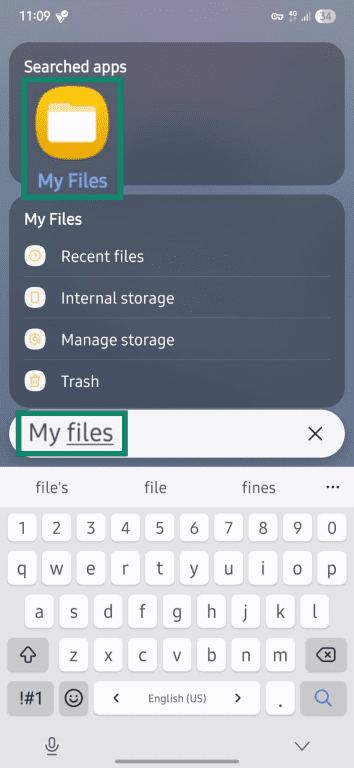
- Open My Files.
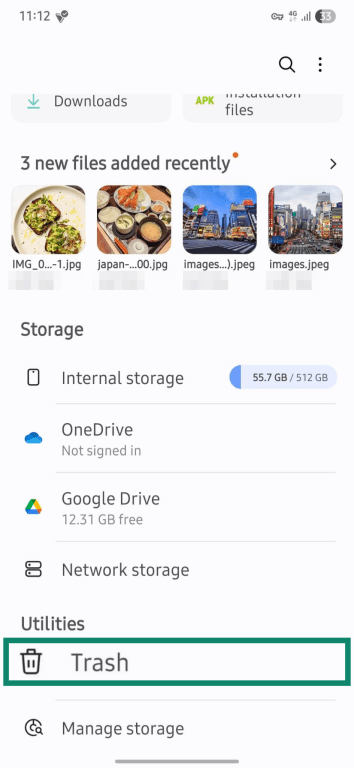
- Scroll down and open Trash.
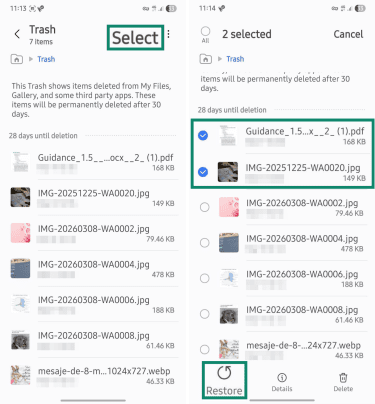
- Tap Select at the top-right corner, then select all the files to recover. Alternatively, tap Edit or touch and hold the files to select them. Tap Restore.
Restore from Files by Google Trash
This method applies to all phones that use Files by Google to manage local files and support its Trash feature.
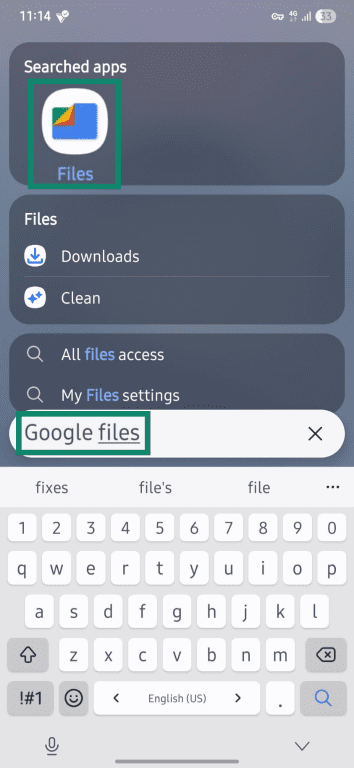
- Open Google’s Files app.
- Tap the hamburger icon in the top-left corner and open Trash (or Bin, depending on region).
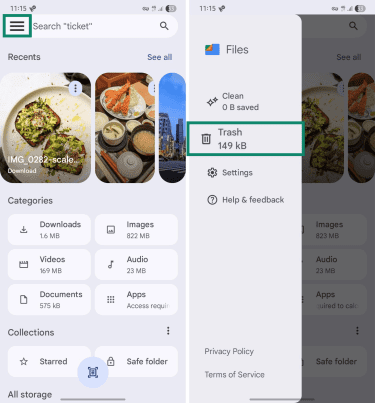
- Select the files and tap Restore.
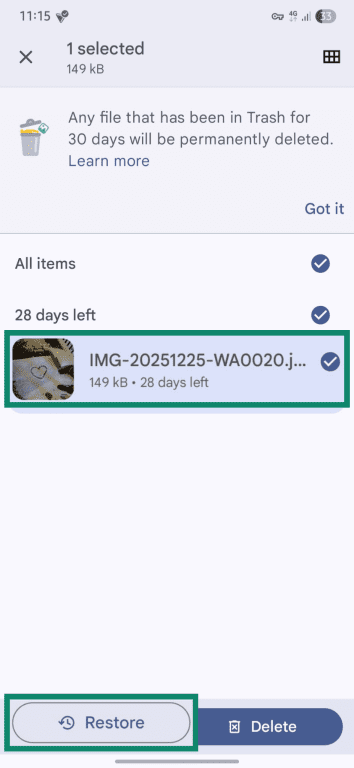
Restore from Google Photos Trash
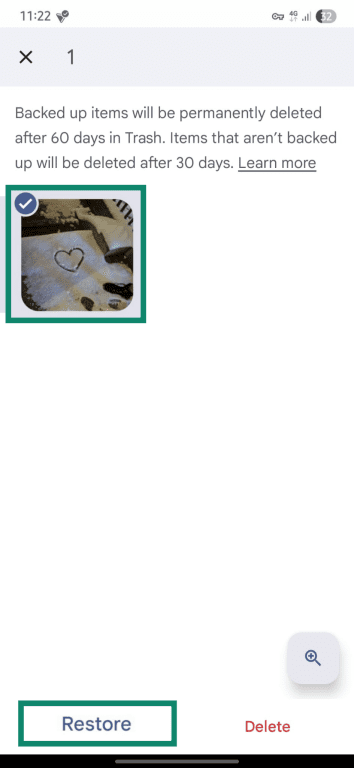
If you delete a photo from Google Photos, you may be able to restore it from the Trash folder. Backed-up photos and videos stay in Trash for up to 60 days. On Android 11 and up, photos and videos that weren’t backed up stay in Trash for up to 30 days.
- Open the Google Photos app.
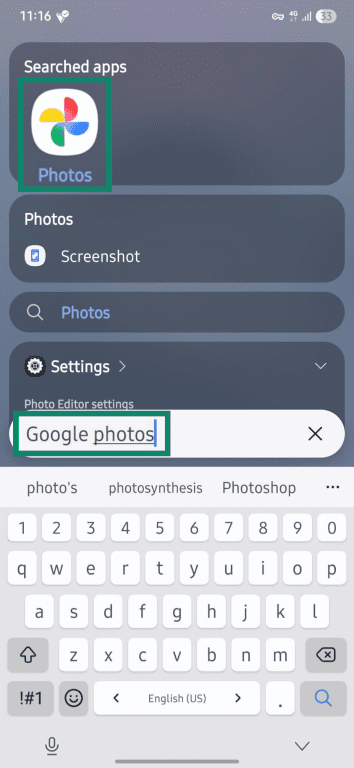
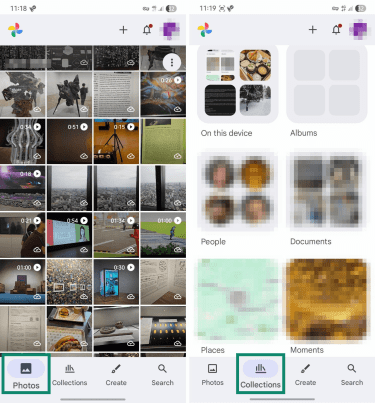
- Go to Collections > Trash.
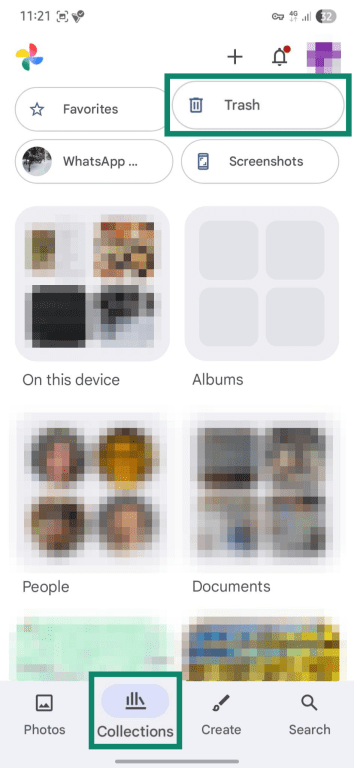
- Select the photos you want to recover and tap Restore.
Restore deleted files from backups
If the file is no longer in the local Trash folder, you may still recover it from an app or cloud backup. This can include Google Photos, WhatsApp backups, and cloud storage services such as OneDrive or Dropbox, as long as backups or uploads were enabled beforehand.
Restore from Google Photos
If you use a separate gallery app (like Samsung Gallery) and have Google Photos backup enabled, a deleted photo may still be available in Google Photos if it was backed up there and was not also deleted from your Google Photos library. Availability depends on how the file was deleted and your backup settings.
To recover backed up photos and videos:
- Open the Google Photos app.
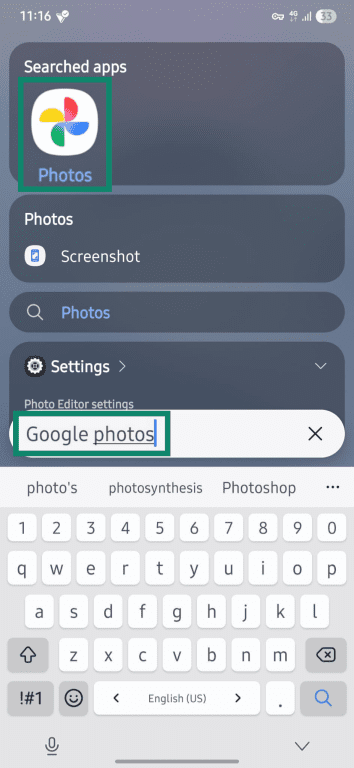
- Scroll through the main Photos tab or go to Collections to look for the item(s).
- Open the photo or video you want to recover and go to the three-dot menu > Download.
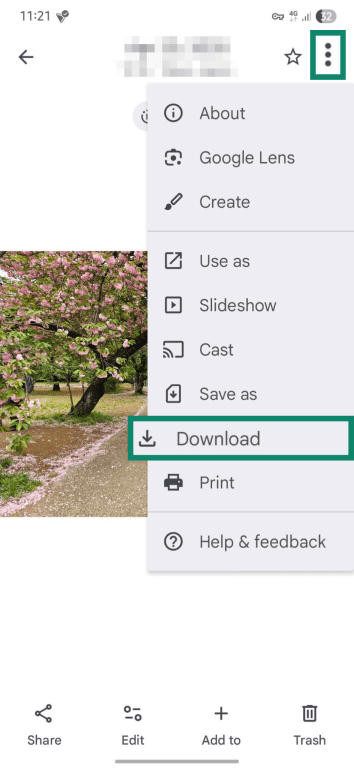
If it's cloud-only, use the available option to download or save it to your device.
Restore WhatsApp media from device storage
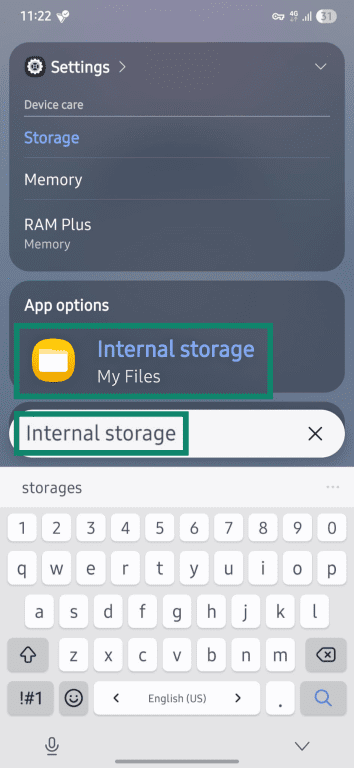
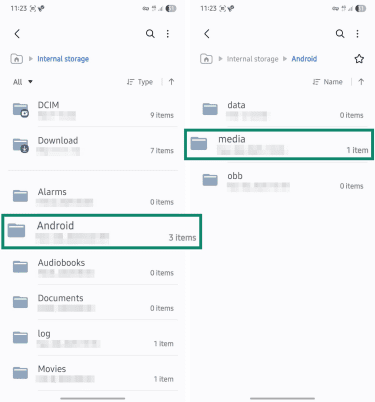
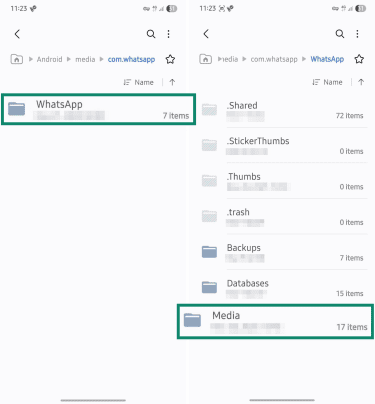
WhatsApp can save downloaded media on your device, even if it no longer appears in your gallery app. Depending on your media visibility and auto-download settings, the files may still be in WhatsApp’s media folders and can be moved or copied with a file manager.
- Search for Internal storage, or go to My Files and open it.
- Go to Android > media.
- Open the WhatsApp folder and go to Media.
- Look for the folder that matches the file type, such as images, video, audio, or documents.
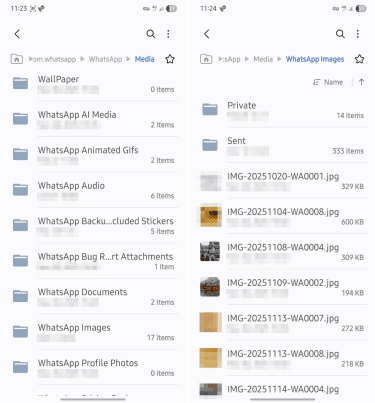
- Select the files you want to recover and tap Move.
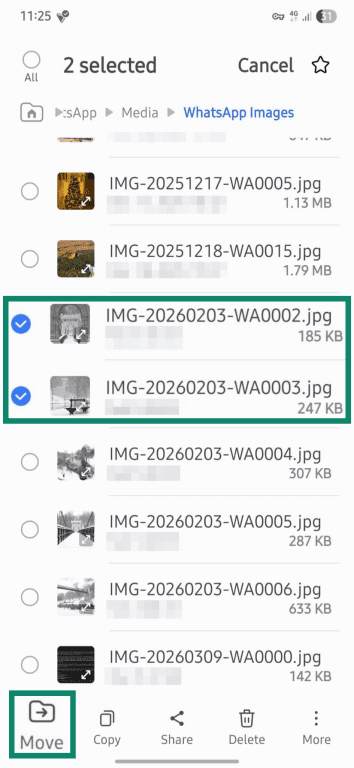
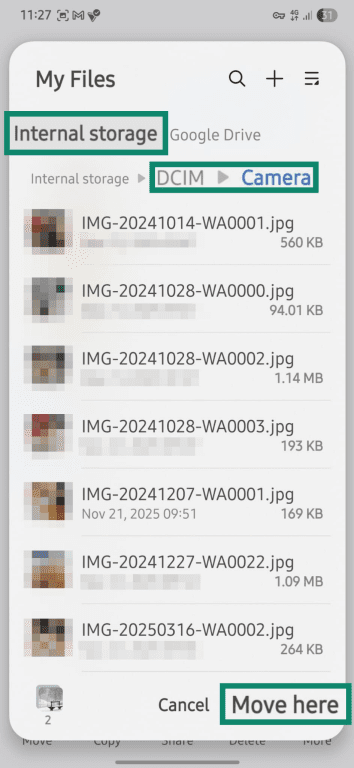
- Tap Internal storage, then choose a folder where you want to store your files (e.g., DCIM > Camera for the Camera Roll). In the folder you chose, tap Move here.
Restore from WhatsApp backup
If the files are no longer on your device, you may still be able to recover them from a WhatsApp backup, which restores saved chats and media together. However, restoring a backup can replace newer chat data created after that backup
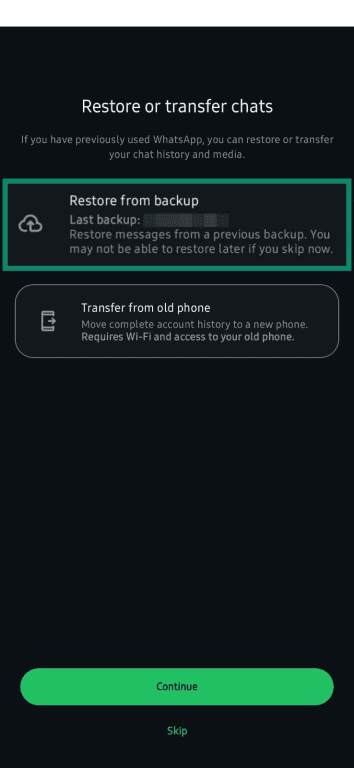
Note: WhatsApp only offers the restore option during initial setup. If you don't see the prompt, uninstall and reinstall WhatsApp, verify that the same phone number and Google Account used for the backup are in use, then tap Restore when prompted.
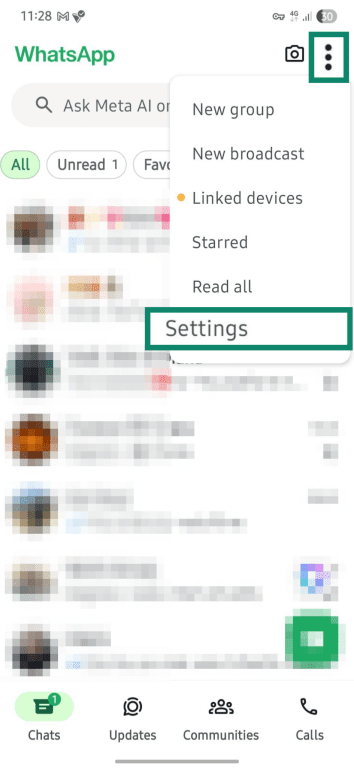
- In WhatsApp, go to the three-dot menu > Settings.
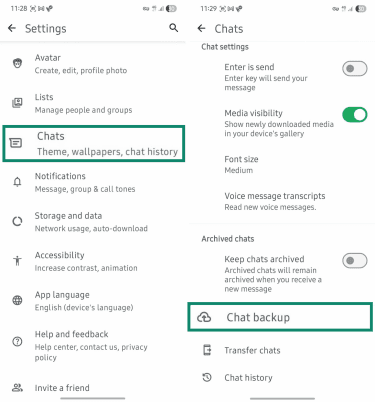
- Open Chats and select Chat backup.
- Tap on Google Account. Select or add the Google account you used to back up your chats and reopen WhatsApp.
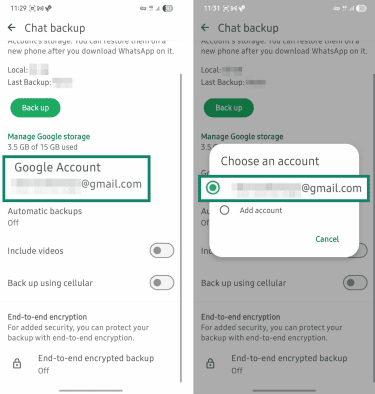
- Select Restore from backup and tap Continue.
Restore from OneDrive or Dropbox
If you use OneDrive or Dropbox, your files may still be there. These services automatically back up your camera roll and selected media folders, and deleting the originals from your phone doesn't affect the cloud copies.
- Open OneDrive or Dropbox.
- Find the files you want to restore in the Files or Photos section.
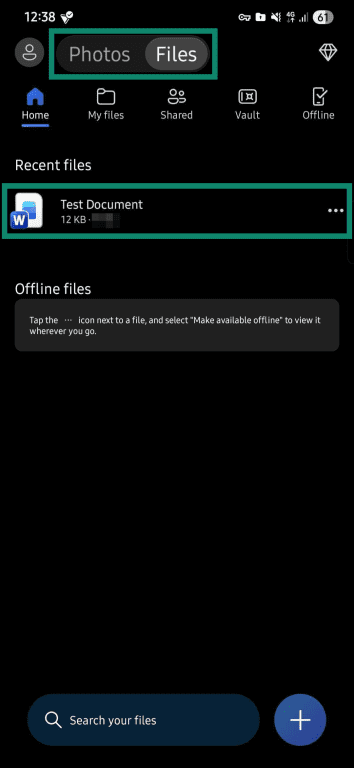
- Tap the three dots next to the file, then tap the Download or Save image option.
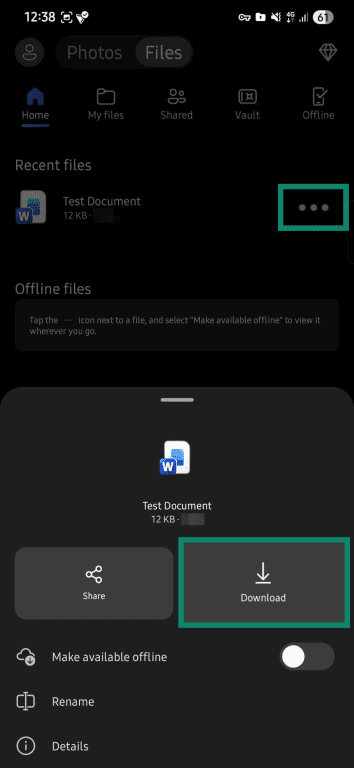
- The app will ask you to choose a download location. Select a folder where you want to save the files, then tap Save.

Recover deleted files from the SD card using a PC
Some data recovery tools can scan SD cards for recoverable files. One example is Recuva for Windows. Other recovery tools, such as Disk Drill, are available for Windows and macOS.
Results may vary depending on how recently the data was deleted, whether new data has overwritten it, or whether the SD card was formatted.
Using Recuva
- Download and install Recuva from the official website.
- Plug your SD card into your PC using an adapter.
- Open the app and click Next. In the wizard, select the type of files you want to recover (such as All Files, Pictures, or Video).
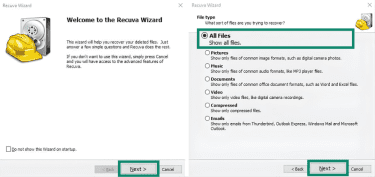
- Select the location of your SD card and click Next.
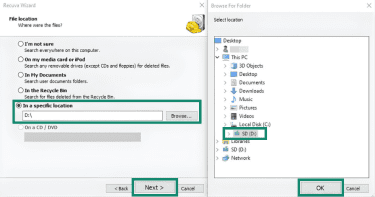
- If prompted, select Enable Deep Scan and click Start. The scan may take some time, depending on how much data is on the card.
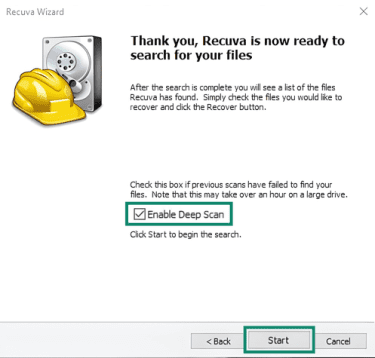
- In the results window, find and select the files you want to restore and click Recover.
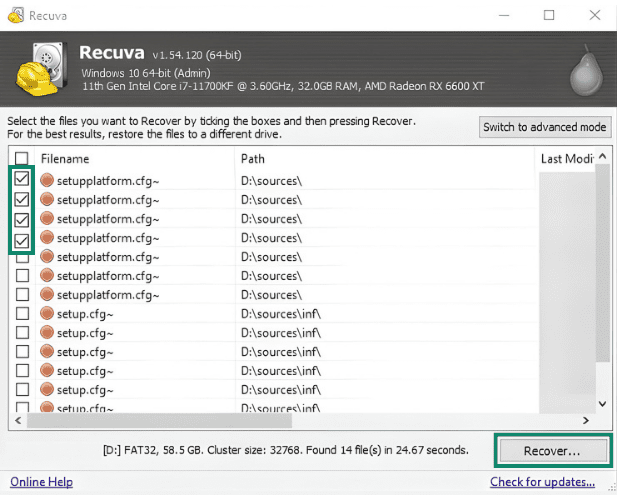
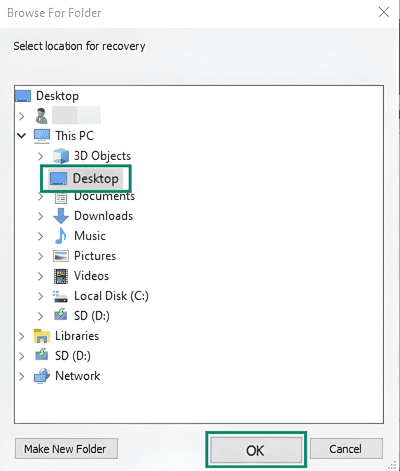
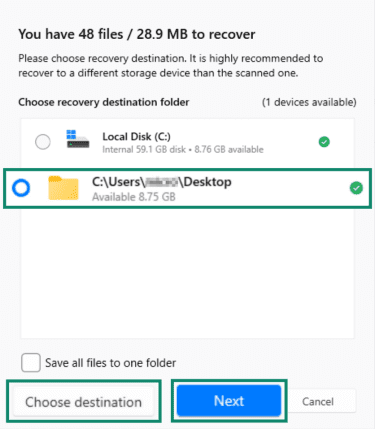
- Choose a location other than the SD card to save the recovered files, then click OK to confirm.
Using Disk Drill
Note that Disk Drill’s free version offers up to 100MB of free recovery on Windows.
- Download and install the official Disk Drill app.
- Connect the SD card to your computer and open the app.
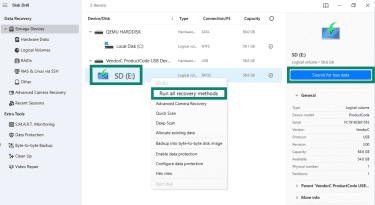
- Select the SD card from the main dashboard, right-click and select Run all recovery methods, then click Search for lost data.
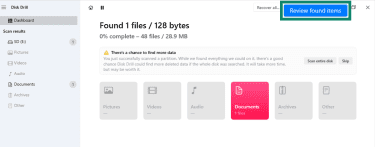
- Click Review found items.
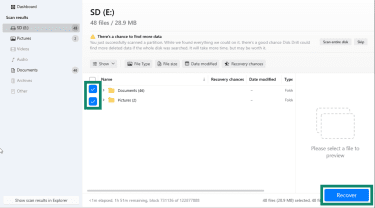
- Select the files you want and click Recover.
- Choose a location to store your files and click Next to confirm.
Should you use Android data recovery apps?
Android’s storage system makes it difficult to reliably recover permanently deleted files from internal storage, even with professional data recovery tools. Modern Android devices use storage and security protections that can sharply reduce the chances of recovery.
Unlike SD cards, internal Android storage is managed by the device’s flash-storage stack and operating system. When files are deleted, their blocks can be marked as unused, and background maintenance, such as discard/TRIM, can make recovery harder over time.
Modern Android devices also use file-based encryption (FBE), which enables different files to be protected with different keys. When the system deletes a file, it also removes the key needed to decrypt that data. Without the key, recovery tools can’t reconstruct the data. In some cases, they can only retrieve low-resolution thumbnails stored in app caches.
Because of these limitations, most Android data recovery apps can’t reliably access permanently deleted files from internal storage. Some claim to scan the device’s storage for recoverable data, but many require root access to do so. Rooting or unlocking the bootloader may void the warranty on some devices and can make the phone unusable if something goes wrong. Even with root access, recovery is not guaranteed.
Why recovering deleted Android files sometimes fails
Data recovery options are limited and often depend on temporary storage and backups. When these options are no longer available, recovery becomes much less likely. The following scenarios reflect how deleted files are handled by Android, apps, and cloud services.
- The trash folder is empty: Internal storage and cloud trash folders retain deleted files for a limited time, but once the retention period expires, the files usually can’t be restored through that trash feature.
- Backups are missing: Backup services can only restore files that were uploaded or synced before they were deleted. Some apps sync in real time, while others sync periodically to save battery life. If syncing was off, incomplete, or not enabled for the relevant folder or app, the file may never have been saved externally.
- Recovered files appear corrupted: Recovery tools sometimes rebuild deleted files from incomplete data. If parts of the original data were overwritten or could not be reconstructed, the recovered files may open incorrectly or fail to open. This risk is higher when storage has already been reused.
- Recovery apps can’t find certain files: Recovery tools find nothing if the device has already reused the storage space. Android storage cleanup, missing metadata, or removal of the encryption key can also eliminate the data needed to reconstruct the file.
How to prevent data loss on Android
The most reliable way to avoid data loss is to back up your files regularly. The 3-2-1 rule is a common approach that suggests keeping three copies of important data (including the original), storing them on two types of storage, and keeping one copy in a separate location.
For Android files, the two main backup storage options are cloud services and physical devices, such as a computer or an external drive. This setup reduces the risk of losing everything if one single storage location fails.
Turning on automatic cloud backups
Cloud backup services can automatically save supported files to online storage, creating an off-device copy. Exactly what gets backed up depends on the app and its settings. For example, Google Photos can automatically back up photos and videos, while OneDrive’s camera backup can save photos, videos, and certain additional image folders.
Many cloud apps back up camera photos and videos by default, but other file types may require separate setup or manual upload. Check your backup settings to ensure the right files and folders are included.
If you use a Samsung device, note that Samsung Gallery can sync media with OneDrive in supported markets and on supported devices, rather than relying on Samsung Cloud for gallery syncing.
Enable automatic backups using Google backup
- Open your phone Settings and select Accounts and backup.
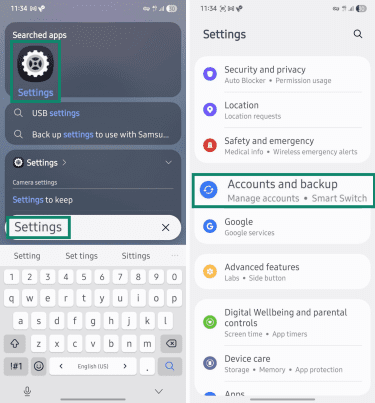
- Go to Manage accounts and make sure you’re signed into the right Gmail account.
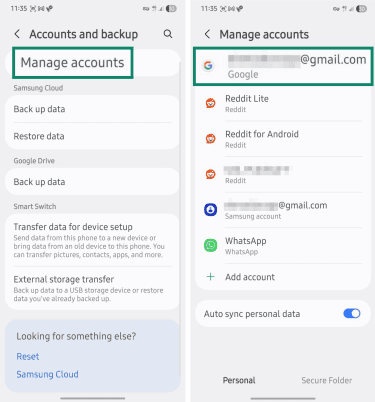
- Go back to Accounts and backup and tap Back up data under Google Drive.
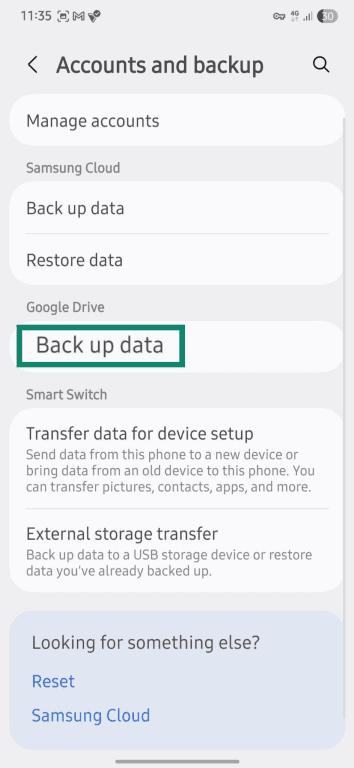
- Select the data you want to back up, for example, Photos & videos or Other device data, which includes app data, contacts, and messages.
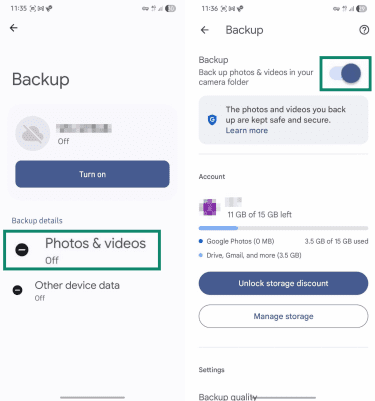
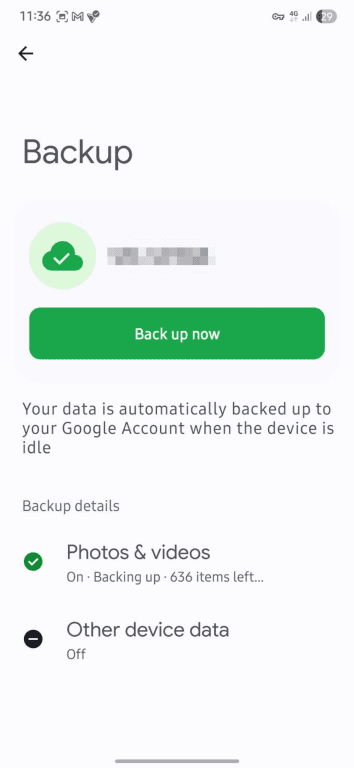
- Return to the Back up data tab and tap Back up now.
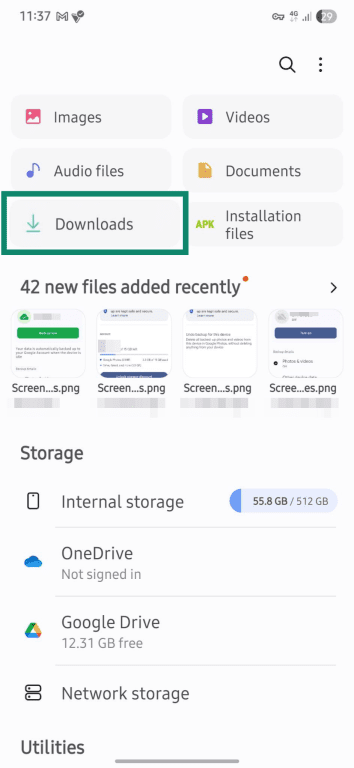
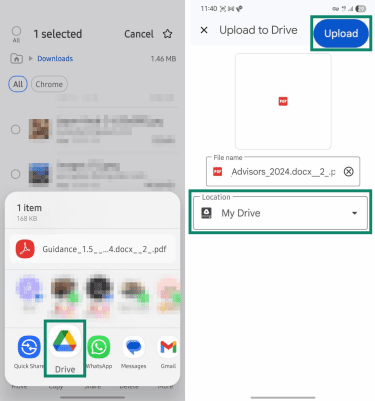
- If you’d like to save other file types, go to My files and select the folder you’re interested in (such as Downloads or Documents).
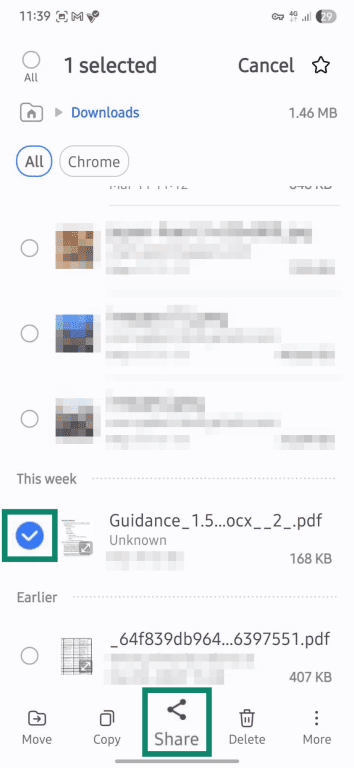
- Select the files you want to upload to Google Drive, then tap Share.
- Select Drive. Choose a destination for the file and tap Upload.
Enable automatic backups using OneDrive
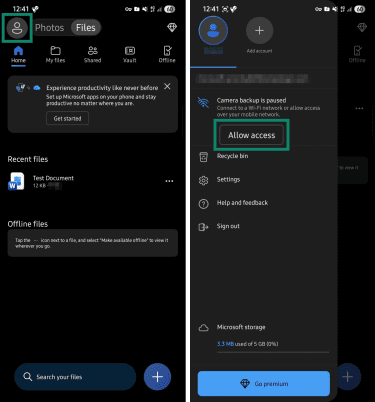
- Open the OneDrive app and sign in.
- Tap your account icon. Under Camera backup, tap Allow access and confirm.
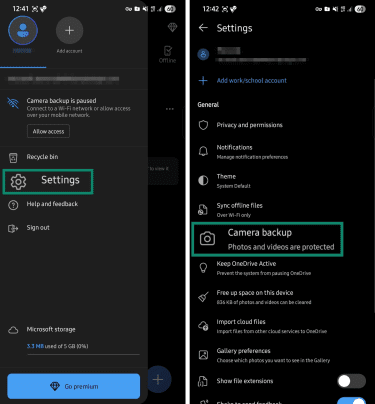
- For more backup settings, open the account menu > Settings > Camera backup.
- Toggle Include Videos on or off to include video files in the backup.
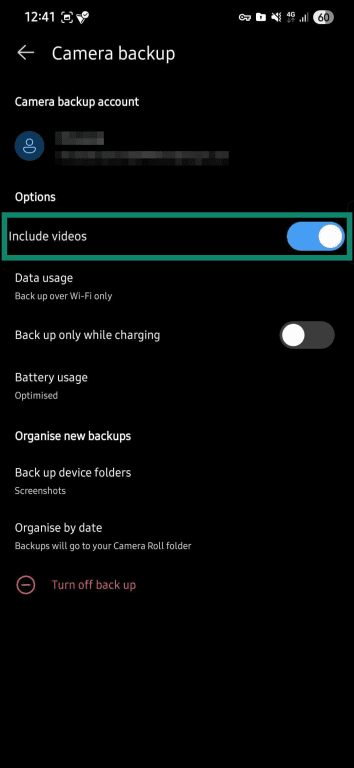
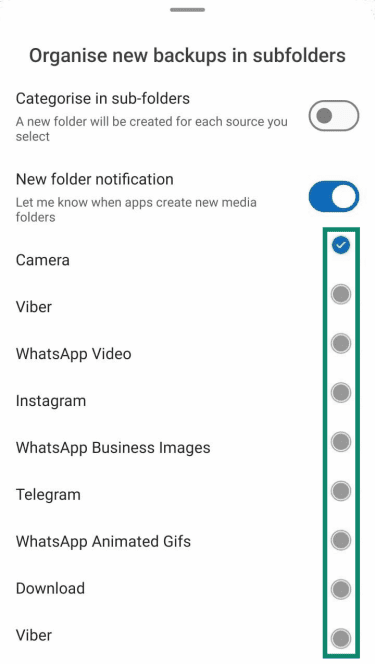
- In the same tab, tap Back up device folders.
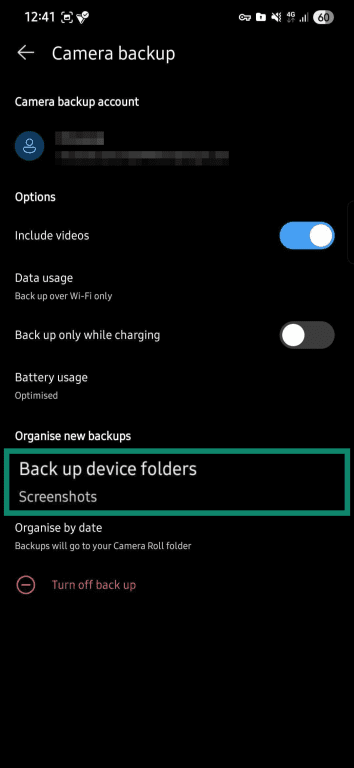
- Select the folders you want included.
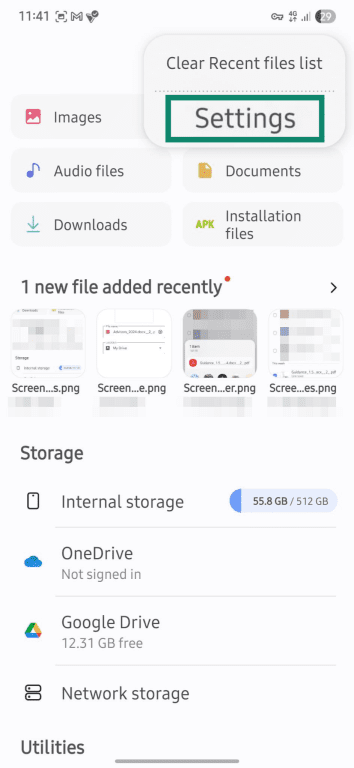
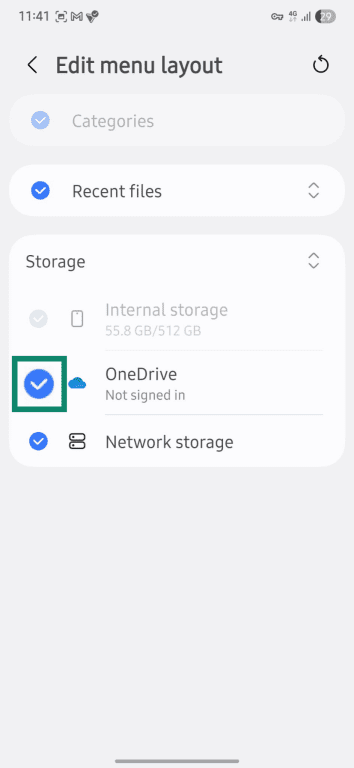
On some Samsung devices, you can back up other file types automatically.
- Go to your phone’s My files > Settings.
- Scroll down and tap Edit menu layout.
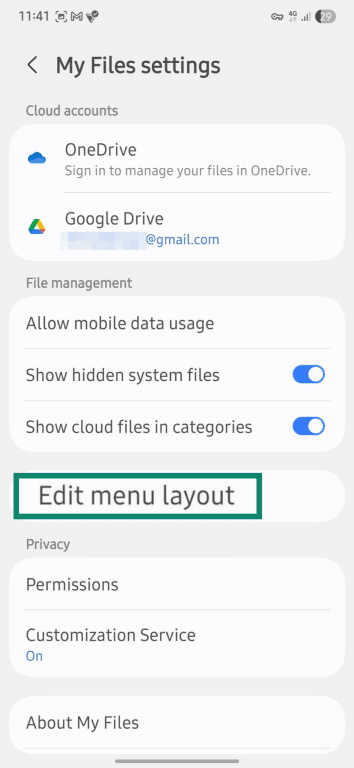
- Select OneDrive.
Creating a simple manual backup routine
Manual backups store files on a physical device, such as a computer or an external drive. These copies don’t sync with your phone, which can help protect them from accidental deletions or cloud-account issues.
Creating a physical backup only requires connecting the phone to a storage device and copying the important files over. But unlike cloud backups, manual backups are not updated automatically, so they require more routine checking and organization.
A few simple best practices can keep these copies accessible and secure:
- Prioritize important files: To avoid data hoarding, back up only data that would be difficult to replace, such as photos, contacts, documents, or notes.
- Keep a backup schedule: Update your backup regularly, especially after adding important files or making major changes.
- Keep multiple copies: Store backups on at least two devices or locations so that a single failure doesn't wipe out everything.
Check backups regularly: Open a few copied files from time to time to make sure they transferred correctly and are still readable.
FAQ: Common questions about recovering deleted files on Android
How can I recover deleted files on Android?
How do I recover deleted files on Android without a backup?
How do I recover deleted photos on Android?
Can I recover deleted files after a factory reset?
How long do deleted files stay in Trash?
Are Android data recovery apps safe to use?
Take the first step to protect yourself online. Try ExpressVPN risk-free.
Get ExpressVPN